 EDITO
Most organisations use AI. Few can say how good they are at it.
Nearly nine in ten organisations now use AI somewhere in the business. Fewer than half are scaling it across the enterprise, and just 6% stand out as high performers.1 The gap is rarely the technology. It is the strategy around it, the governance that keeps it safe, the operations that make it routine, and the people who make it work.
The usual way to look at that gap is a snapshot: one view of the whole organisation, taken once, written up, and filed. It shows where you stood on a single day. It cannot show which part of the organisation is holding the rest back, or whether anything has moved since.
EDITO measures AI maturity against the EDITO AI Maturity Framework. It has 44 elements across six dimensions: Customer, Strategy, Technology, Governance, Operations and Workforce. Together they place each part of the organisation on a five-level scale, from Explorer to Orchestrator. Every score above 3 must be backed by a written note, in the assessor's own words.
EDITO doesn't stop at the score. The organisation defines its own structure. Each unit is assessed by the people given access to it: its assessors, its head and the heads above it, and the sponsor. Results roll up to every level, weighted by size. The gaps become a plan with owners and timelines, measured against goals the organisation sets for itself. Then, cycle after cycle, the same units are assessed again, and EDITO shows the progress: how far each unit has come, and how far it still has to go.
That movement is the point. It isn't a grade on a single day. It's evidence, cycle on cycle, that the organisation is getting better at AI.
How this Guide is organised. The Guide follows the cycle. Part 1, Set up is done once: the workspace, the organisation's profile, its structure, and its Roles and Responsibilities. Part 2, The assessment cycle repeats: company posture and goals, then assess, read the result, plan, track, and re-assess. Part 3, Dashboards and reports gives the whole picture, drawn from every result.
1 McKinsey & Company, The state of AI in 2026, August 2026. Survey of 1,719 participants, fielded May–June 2026.
How EDITO scores — in brief
Scoring
Each of the 44 elements is scored from 1 to 5. Elements combine into six dimension scores, and the dimensions into an overall score, weighted by each dimension's impact. The overall score places the unit at one of five levels, from Explorer to Orchestrator.
Flags
Five flags watch for serious weaknesses — for example, autonomy without guardrails. A flag points at a risk to address first. It never lowers or caps a score: every element and dimension is still shown on its own.
Roll-up
Unit results combine up the structure into a parent unit's view and the organisation's view, weighted by each unit's FTE, so a larger unit counts for more. Units not yet assessed are left out and listed. Flags are counted, never ranked.
Maturation
When a unit is assessed again, EDITO compares the two assessments: the movement since last time for each dimension, and the distance still to each goal. That movement is what EDITO is for.
Names and counts are read from the framework definition, so this section changes when the framework does.
Honest-use principles
| 1 | A diagnostic, not an audit or a grade. The score is indicative — a mirror, not a verdict. |
| 2 | It only works if you're honest with yourself. Inflating scores just hides the gaps the assessment exists to find. |
| 3 | For improvement, not judgment. Results are for deciding where to invest next, not to rank or penalise an individual or a unit. |
| 4 | Rate your real, current state. Not your aspiration or your best day. Routine reality is what moves over time. |
Set up
Done once, by the sponsor with an administrator: the workspace, the organisation's profile, its structure, and its Roles and Responsibilities.
Your workspace and licence
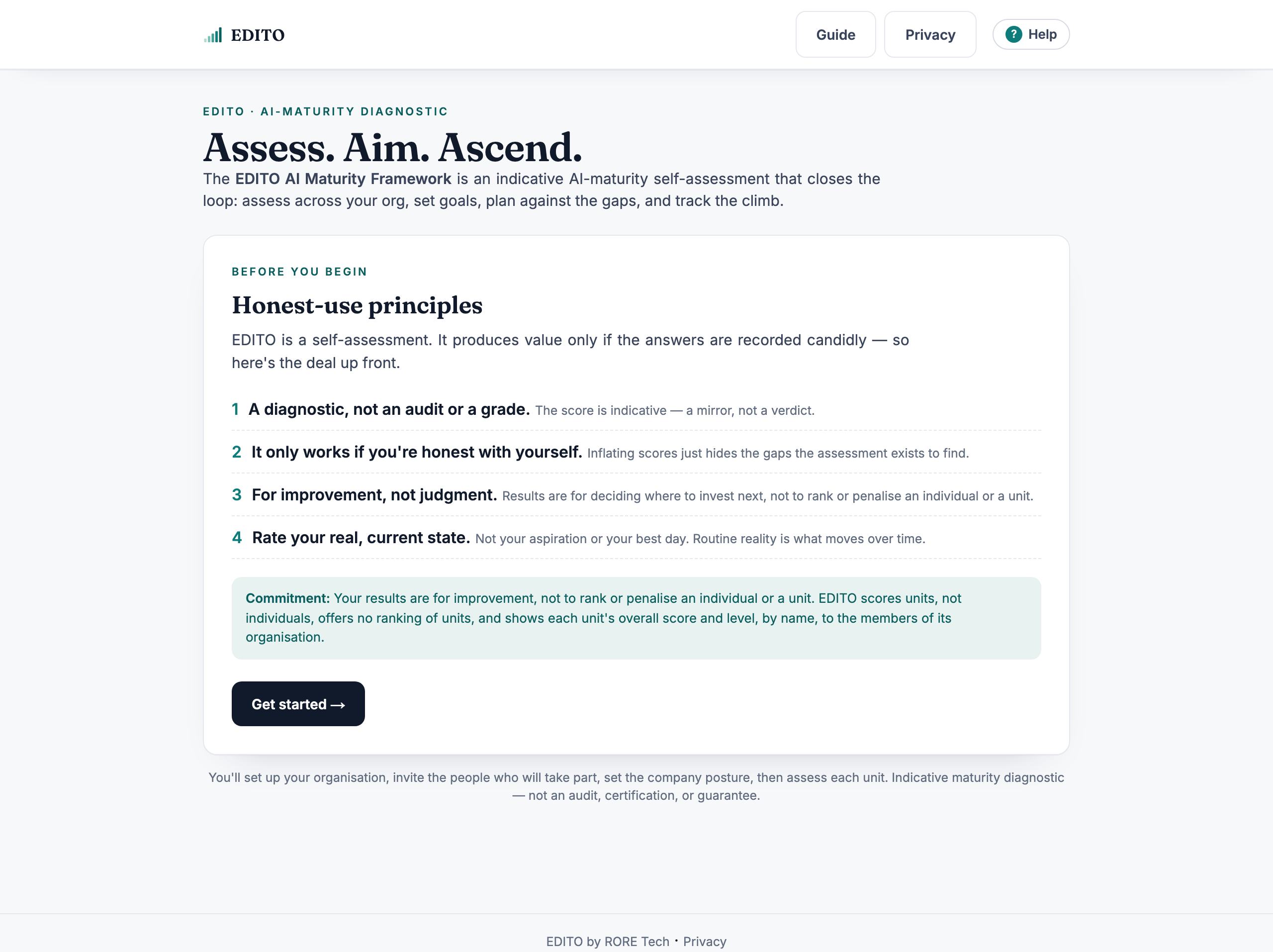
- 1The honest-use principles — read them before you begin.
- 2Get started — takes you to sign-in.
- 3How your data is handled (R.3).
?What it is
EDITO's operator sets up your organisation's workspace and the sponsor's account for you. The workspace holds one organisation, with its structure, its people and its results. There is no licence page in the product.
👤Who does it
✓Before you start
- Your organisation has a written order or contract with EDITO that names the sponsor.
- You and EDITO's operator have agreed, in writing, how your first password will reach you.
→How to do it
- EDITO's operator creates your workspace, your organisation and your account. Your account is the sponsor's, and it is also an administrator's.
- The operator gives you your first password by the channel you agreed — never by email.
- Sign in with your work email and that password (1.2).
- Set up a passkey when EDITO asks. You can then change your password from your account page.
⚙How it works
- One workspace holds one organisation.
- The operator creates your first password and passes it only to you. Change it on your account page once you are in.
- A new or reset account has 7 days to set up a passkey. Your passkey setup page shows the exact deadline. After it, signing in with only your password stops working, and your sponsor has to arrange a reset with EDITO's operator.
- Everyone else joins by an invitation made in EDITO and passed on by the person who made it, and sets their own password, unless their organisation uses its own sign-in.
⚑What it is not
- Not a sign-up page: a workspace can't be created from here.
- Not a licence page.
Signing in and your account
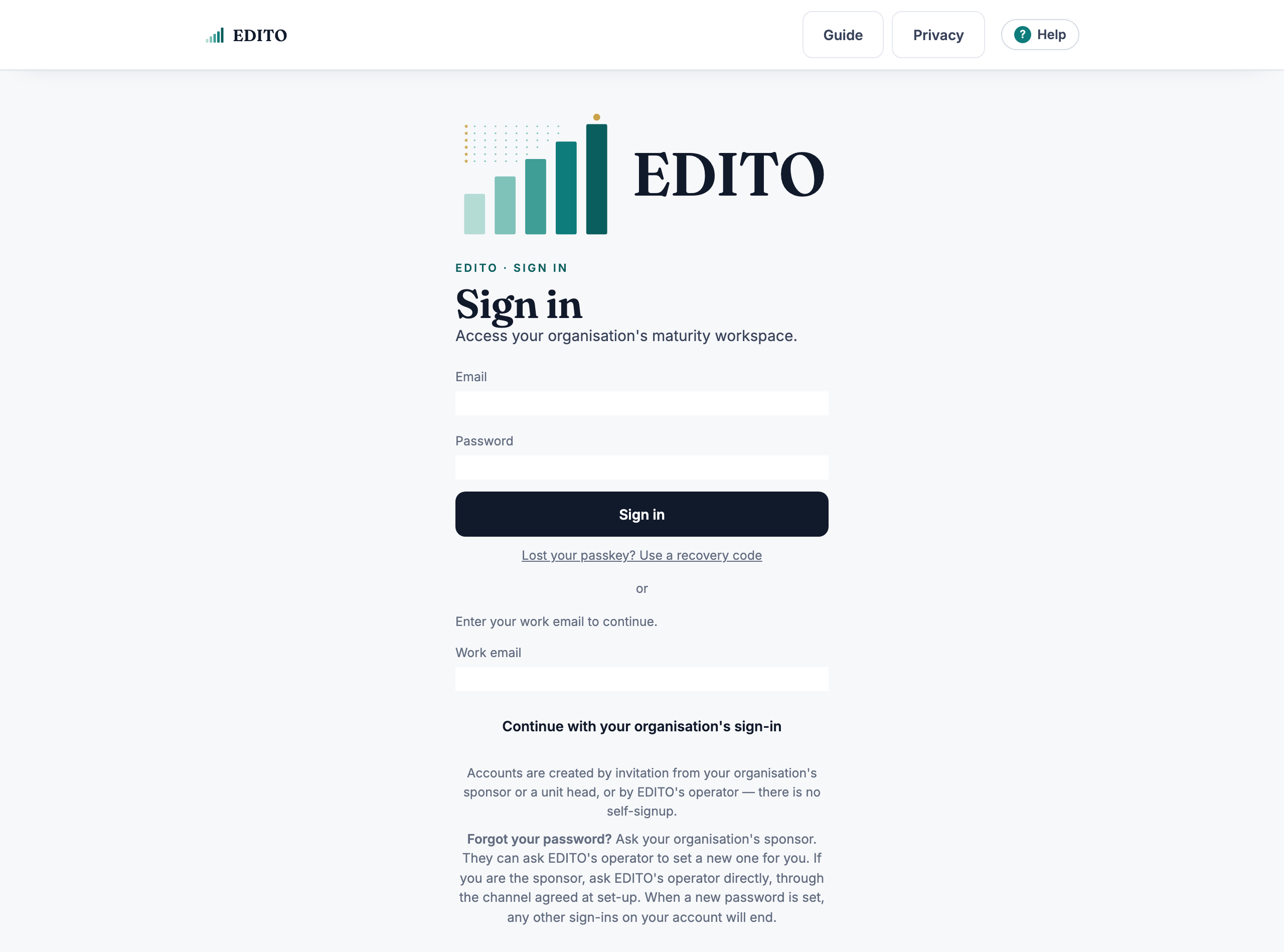
- 1Your email and password — then your passkey.
- 2Lost your passkey? A recovery code works instead.
- 3Or your organisation's own sign-in, by work email.
- 4Forgotten your password — who to ask.
?What it is
There are two ways into EDITO. One is your email, a password and a passkey. The other is your organisation's own sign-in, if it uses one with EDITO. Your account page shows your roles and units, your passkeys and recovery codes, and the changes made to your sign-in. It lets you change your password if you have one.
👤Who does it
✓Before you start
- You have an account. The sponsor's is set up by EDITO's operator (1.1); everyone else accepts an invitation.
- You have a device that can hold a passkey.
→How to do it
- Invited? Open the link in your invitation, fill in Your name and Choose a password, then select Create account.
- Enter your email and password, then select Sign in. If you already have a passkey, confirm it when asked.
- The first time you sign in with a password, EDITO asks you to set up a passkey. Select Register a passkey. EDITO then shows your recovery codes, once: save them, then select Sign in again, and sign in with your password and your new passkey.
- To use your organisation's sign-in instead, enter your work email under Work email and select Continue with your organisation's sign-in. Your organisation's sign-in does the rest, and EDITO asks for no passkey.
- To see your roles, your passkeys or the changes to your sign-in, or to change your password, select your email in the bar on any page of your organisation.
- To add a passkey or create new recovery codes, open your account page and select Open → under Passkeys & recovery. To create new codes, select Generate recovery codes.
- To remove a passkey, select Remove beside it on your account page, then Remove passkey. EDITO signs you out, and you sign in again with your password and one of your other passkeys.
⚙How it works
- A password sign-in always needs a passkey too. Until you set one up, the passkey setup page is the only page you can reach.
- Each recovery code works once, in place of a lost passkey. After you sign in with one, add a new passkey, then remove the lost one on your account page.
- Changing your password signs you out here and everywhere else you are signed in. You then sign in again with the new one.
- You can change your password only after your passkey is set up.
- If your organisation requires its own sign-in, you have no EDITO password to change.
- Once you have a passkey, adding another, removing one or creating new recovery codes needs a sign-in from the last 10 minutes. If yours is older, EDITO asks you to sign in again.
- If EDITO asks you to sign in again before removing a passkey, it opens your passkey setup page afterwards. To remove the passkey, select your email in the bar to go back to your account page.
- If you signed in through your organisation's own sign-in, you can't change passkeys or recovery codes. Sign in with your email, password and passkey instead.
- Removing a passkey signs you out here and everywhere else you are signed in.
- You can't remove your only passkey. Add a new one first.
- Each change you make to your password, passkeys or recovery codes is listed under Changes to your sign-in on your account page, as made by you. Changes made by EDITO's operator are listed there too.
⚑What it is not
- Not a sign-up: accounts come from EDITO's operator or from an invitation.
- There is no reset link. EDITO's operator resets a forgotten password. The sponsor asks the operator directly, through the channel agreed at set-up; everyone else asks the sponsor.
- There is no general Google button. An organisation that uses Google Workspace signs in through its own sign-in.
!If you see this
| Passkey step was cancelled or failed. Try again, or use a recovery code. | The passkey step didn't finish. Try again, or use a recovery code. |
| Your organisation doesn't use single sign-on with EDITO. Sign in with your email and password above. | Your organisation doesn't sign in through its own provider with EDITO. |
| We couldn't sign you in with your organisation's account. Contact your administrator. | Your organisation's sign-in didn't let you in. Contact your organisation's administrator. |
| You signed in through your organisation's identity provider. To change your EDITO password, sign in with your email and password. | You signed in through your organisation's sign-in, so there is no password to change in this session. |
| This device already has a passkey. Add another on a different device for backup, or continue. | Add another passkey on a different device as a backup, or continue. |
| For your safety, sign in again before you add or remove a passkey, or create new recovery codes. | You signed in more than 10 minutes ago. Sign in again to make the change. |
| Passkeys and recovery codes protect signing in with your password. To change them, sign in with your password and passkey. | You signed in through your organisation's sign-in, which can't change passkeys or recovery codes. |
| This is your only passkey, so it can't be removed. EDITO needs at least one to sign you in. To replace it, add a new passkey first, then remove this one. | It's your only passkey. Add a new one before you remove this one. |
| That passkey couldn't be removed. Reload the page and try again. | The passkey wasn't removed. Reload your account page; if it's still listed, try again. |
| Your passkey was removed and you were signed out. Sign in with your password and passkey. | You removed a passkey, which signed you out everywhere. Sign in again. |
| Your passkey is saved. Sign in again with your password and passkey. | Your first passkey is saved, and setting it up signed you out. Sign in again with your password and that passkey. |
| Save these recovery codes now. Next, you will sign in again with your password and passkey. | These are your recovery codes, shown only this once. Save them somewhere safe before you sign in again. |
| Your recovery codes could not be shown. Generate them again — any codes you saved before may no longer work. | The request didn't finish, so no new codes were shown. Generate a new set and save it; the set you saved before may already have been replaced. |
Organisation home
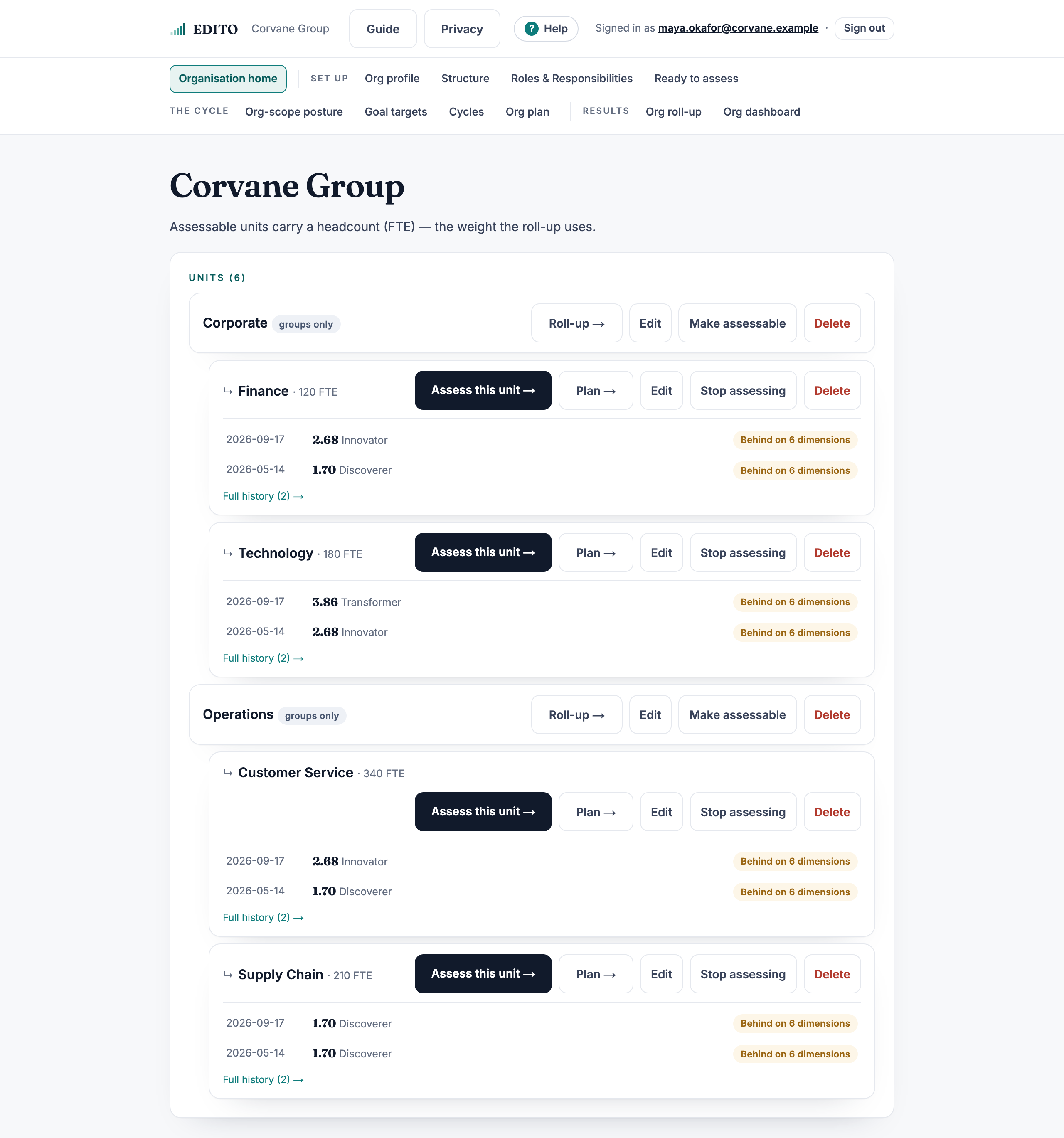
- 1The organisation menu — every page of the organisation, grouped.
- 2Your units — the ones you can see.
- 3Assess a unit, open its plan, or roll up the units under it.
- 4A unit's latest result, and its history.
?What it is
Your organisation's starting page. It holds the organisation menu, a card while the company posture or the goals are still to set, and the units you can see, each with its doors.
👤Who sees it
✓Before you start
- You are signed in (1.2).
→How to do it
- Use the organisation menu to reach any page, under Set up, The cycle and Results. The page you are on shows as plain text.
- If Still to set up appears, finish what it lists. The sponsor selects Set org-scope → or Set targets →; everyone else sees Set by the sponsor. An administrator with no unit access sees no card.
- In your units, select Assess this unit →, Plan →, or the roll-up door for the units beneath.
- From any unit page, select your organisation's name in the bar to come back here.
⚙How it works
- The menu shows only the pages you can open; nothing is greyed out.
- Your units list is scoped to you.
- Each door appears only where you may use it.
- A unit's FTE is the weight the roll-up uses.
⚑What it is not
- Not where units are added: that is Structure (1.5).
- Not a ranking. Units are listed in the order of your structure, never by score.
- Still to set up goes away once the company posture and the goals are set. It does not check the profile, the structure or the people.
!If you see this
| Assess (org-scope first) | The sponsor hasn't set the six org-scope elements yet (2.1). |
| Plan (set a target first) | No goal is set yet for this unit (2.2). |
»What's next
1.4 Org profile — describe your organisationOrg profile
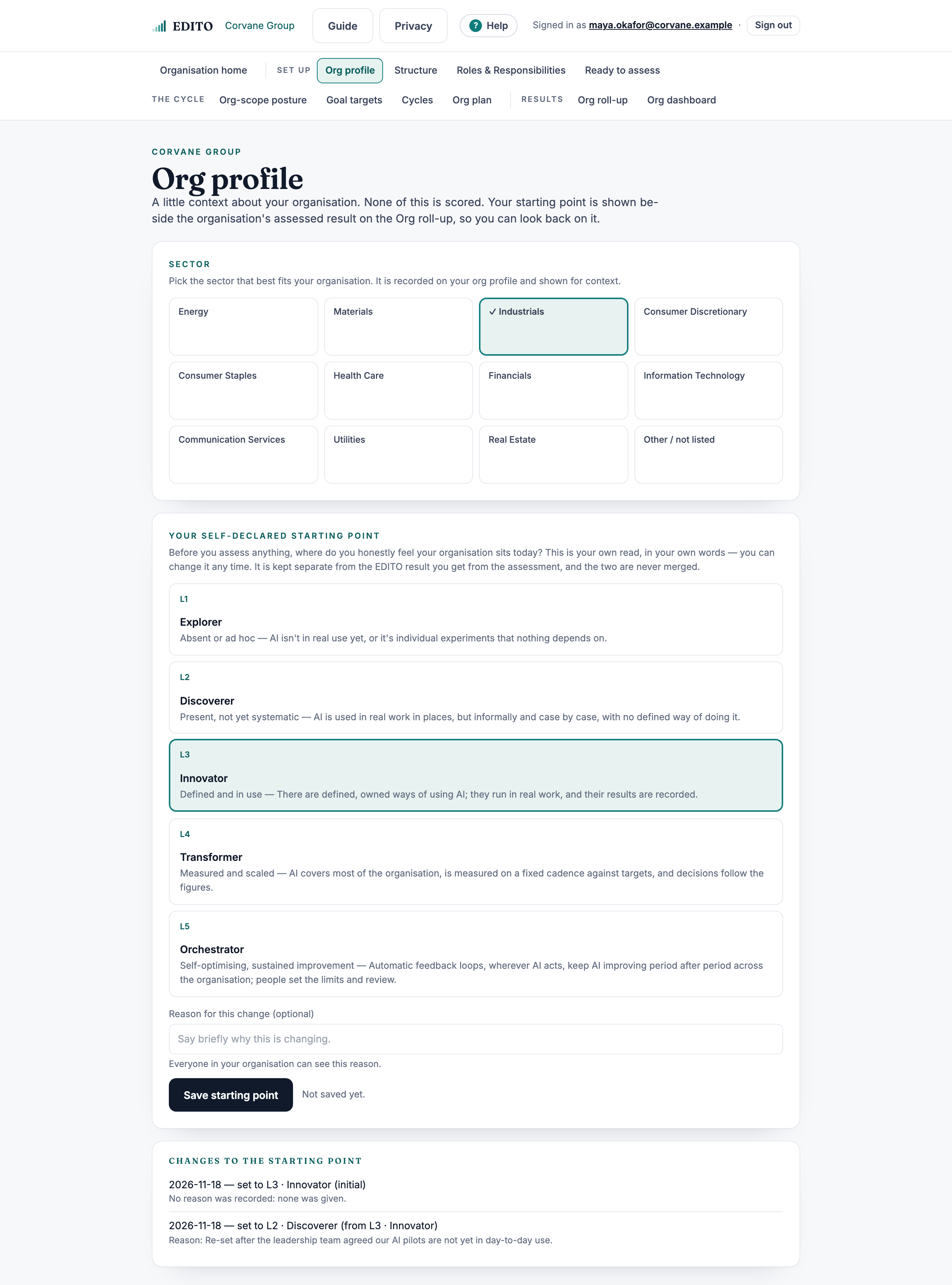
- 1Sector — pick the one that best fits.
- 2Your self-declared starting point, L1–L5.
- 3Optional reason, then Save starting point.
- 4Changes to the starting point, dated.
?What it is
A little context about your organisation. None of this is scored. Your starting point is shown beside the organisation's assessed result on the Org roll-up, so you can look back on it.
👤Who does it
✓Before you start
- Your workspace is set up and you are signed in as the sponsor or an administrator.
→How to do it
- Under Sector, pick the sector that best fits your organisation.
- Under Your self-declared starting point, pick the level that honestly describes your organisation today. Each level carries a one-line description, from L1 · Explorer to L5 · Orchestrator.
- If you are changing an earlier choice, add a reason if you wish. Everyone in your organisation can see it.
- Select Save starting point.
⚙How it works
- The six dimension weights are the same for every organisation, unit and cycle.
- Your starting point is shown beside the organisation's assessed result on the Org roll-up, for comparison — never combined with it or used to change it.
- Every change to the starting point is listed with its date, the level it moved from and to, and any reason.
⚑What it is not
- Not part of the score.
- Not a goal — goals are set per dimension (2.2).
!If you see this
| Not saved yet. | You picked a level but haven't saved it. Select Save starting point. |
| This is your organisation's profile. A sponsor or admin can update it. | You can read the profile but not change it. Ask your sponsor or an administrator. |
| Changes made before 2026-10-11 were not recorded. | The level was set before EDITO began recording changes to it; later changes are listed. |
Structure
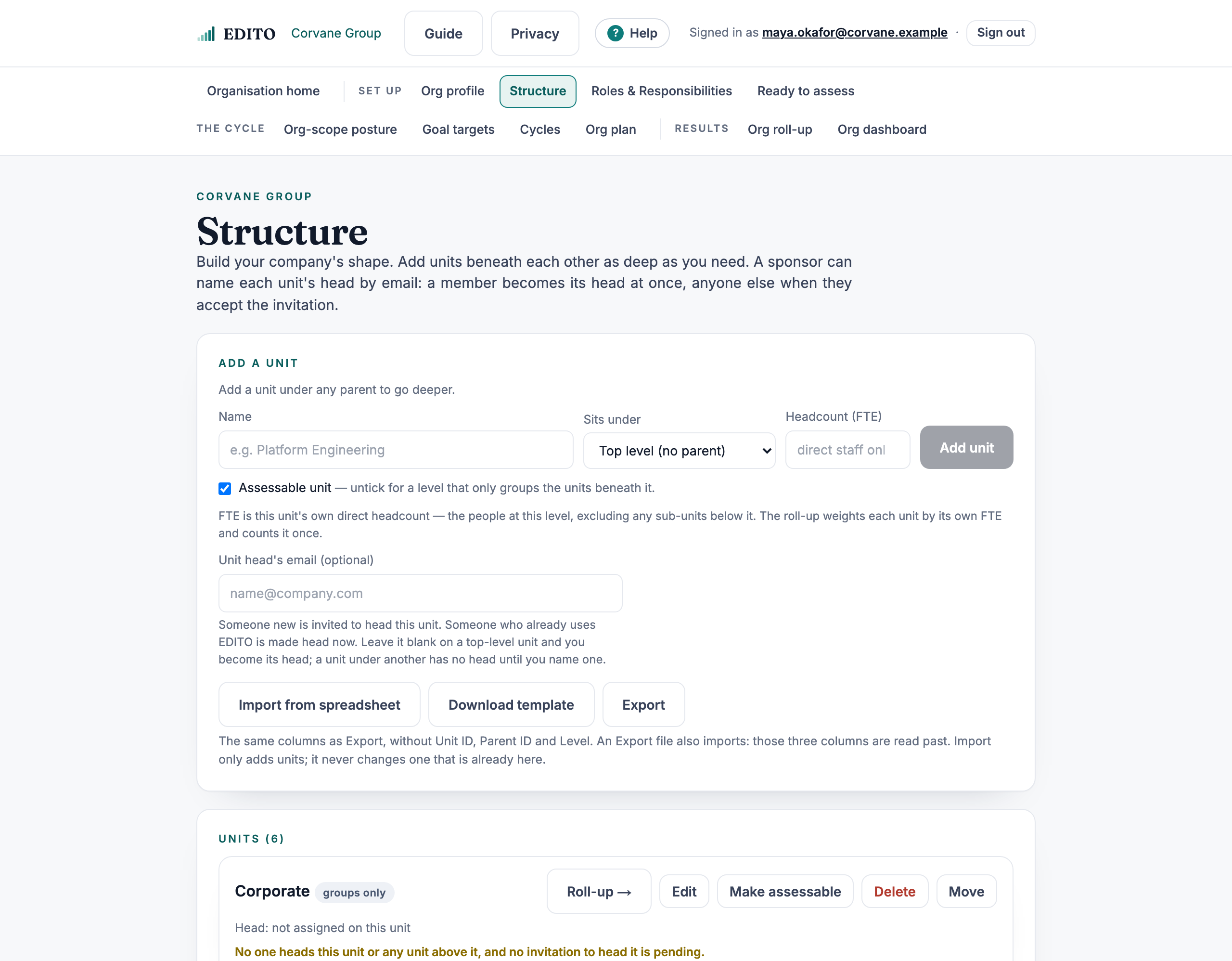
- 1Add a unit: its name, where it sits, its headcount.
- 2Name its head by email — optional.
- 3Or add many units from a spreadsheet.
- 4Who heads and who assesses each unit.
?What it is
Build your company's shape. Add units beneath each other as deep as you need. A sponsor can name each unit's head by email: a member becomes its head at once, anyone else when they accept the invitation.
👤Who does it
Within their part of the organisation, a unit head can add units, rename them, change their headcount, and turn assessment on or off. Only a sponsor or an administrator can move or remove units. Only a sponsor can name a head while adding a unit.
✓Before you start
- The org profile is saved (1.4).
- Know each unit's own direct headcount (FTE): the people at that level, not the people in the units under it.
→How to do it
- Under Add a unit, give its Name, pick where it Sits under, and give its Headcount (FTE).
- Leave Assessable unit ticked for a unit that is assessed. Untick it for a unit that only groups the units beneath it.
- If you are the sponsor, you can add the Unit head's email. Someone new is invited to head this unit. Someone who already uses EDITO is made head now. Leave it blank on a top-level unit and you become its head; a unit under another has no head until you name one. You can also name a head later, on Roles & Responsibilities (1.6).
- Select Add unit. Repeat until your structure is complete.
- To add many units at once, select Import from spreadsheet, or Download template first.
⚙How it works
- FTE is this unit's own direct headcount — the people at this level, excluding any sub-units below it. The roll-up weights each unit by its own FTE and counts it once.
- A unit that only groups others is not assessed and carries no FTE. Its figures are rolled up from the units under it, weighted by headcount.
- Moving a unit moves the units under it with it. Before you confirm, EDITO lists who will start to see it and who will stop.
- Import only adds units; it never changes one that is already here.
- Every change to the structure is recorded. Completed cycles keep the units they were completed with.
⚑What it is not
- Not an org chart of people. It lists units; people are added in 1.6.
- Headcount does not change a unit's own score. It sets how much the unit counts in combined results.
!If you see this
| No one heads this unit or any unit above it, and no invitation to head it is pending. | No head is named for it yet. Invite one on 1.6; if you are the sponsor, you can also make an existing member its head on People (1.6). |
| This unit has an assessment in the current cycle, so it can't stop being assessed while that cycle is open. | Wait until the cycle closes (2.1). |
Roles and Responsibilities
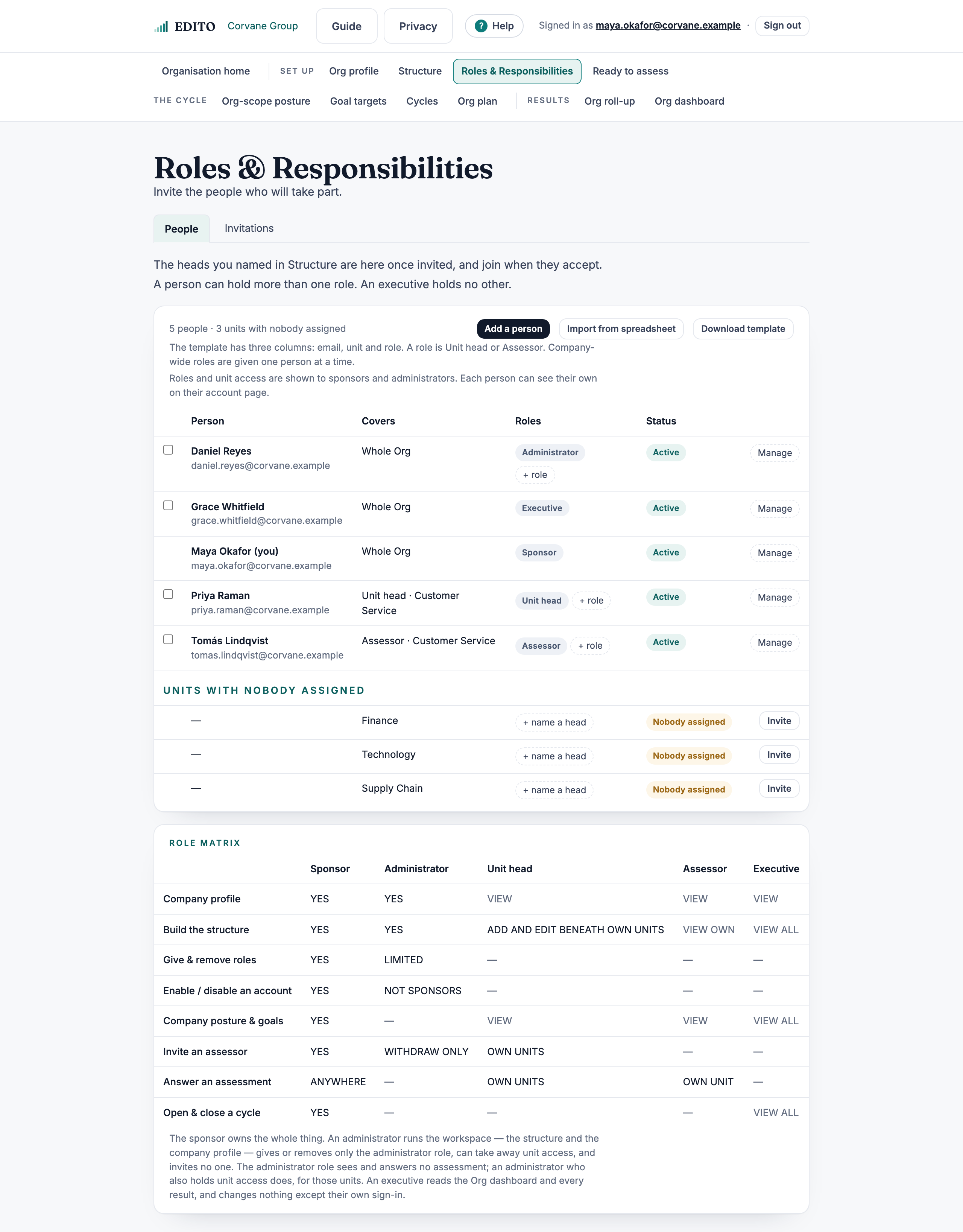
- 1Add a person — this opens a new invitation.
- 2Or invite many people from a spreadsheet.
- 3Each person: what they cover, their roles and status.
- 4Units that still need someone named.
- 5What each role can do.
?What it is
Invite the people who will take part. Each person gets a role on a unit: a unit head manages that unit and everything under it; an assessor answers the assessment for that one unit.
👤Who does it
The Role Matrix card on this page shows every role's reach in full.
✓Before you start
- The units you will invite people to exist on Structure (1.5).
- An assessor can only be given a unit that is assessed, not one that only groups others.
→How to do it
- The sponsor, or a unit head inviting an assessor, creates the invitation; an administrator can't. Under New invitation, enter Their email address. One address at a time.
- Under Where this invite applies, pick the unit.
- Under Access this invite grants, pick Unit head or Assessor. A unit head is offered Assessor only.
- Select Create invite link.
- EDITO doesn't send anything. Select Email invite to open it in your own email, or Copy link to share it yourself.
- If you are the sponsor, you can invite many people at once with Import from spreadsheet under People.
⚙How it works
- An invite link works for 7 days and only once. A pending invite shows as Pending in Invites until it is accepted, revoked or expires.
- Issue a new link withdraws the current link and creates a new one. The old link stops working.
- The template has three columns: email, unit and role. A role is Unit head or Assessor. Company-wide roles are given one person at a time.
- One row per new person. If the same person appears twice in the file, the second row is refused. Invite them once, then give them more units on People after they join.
- Rows that begin with # are instructions and are skipped. That includes an email address typed with a # at the start of column A, so check the first character of each address.
- Each new invitation's link is shown once, after the import. Copy them before you leave the page.
⚑What it is not
- Not an email service. EDITO never sends the invitation for you.
- An invitation is not access yet. The person has access only after they accept it and create their account.
!If you see this
| That email already belongs to someone in your organisation, so no invite is needed. | A sponsor gives the existing person the role on People instead. |
| This person is already in this file (row 3). Invite them once; give more units on People after they join. | Delete the extra row and import again. |
| This unit only groups other units and isn't assessed itself, so only Unit head access can be given on it. | Pick an assessed unit, or invite this person as Unit head. |
| Expired | The link's 7 days ran out. Select Issue a new link and share it again. |
Ready to assess
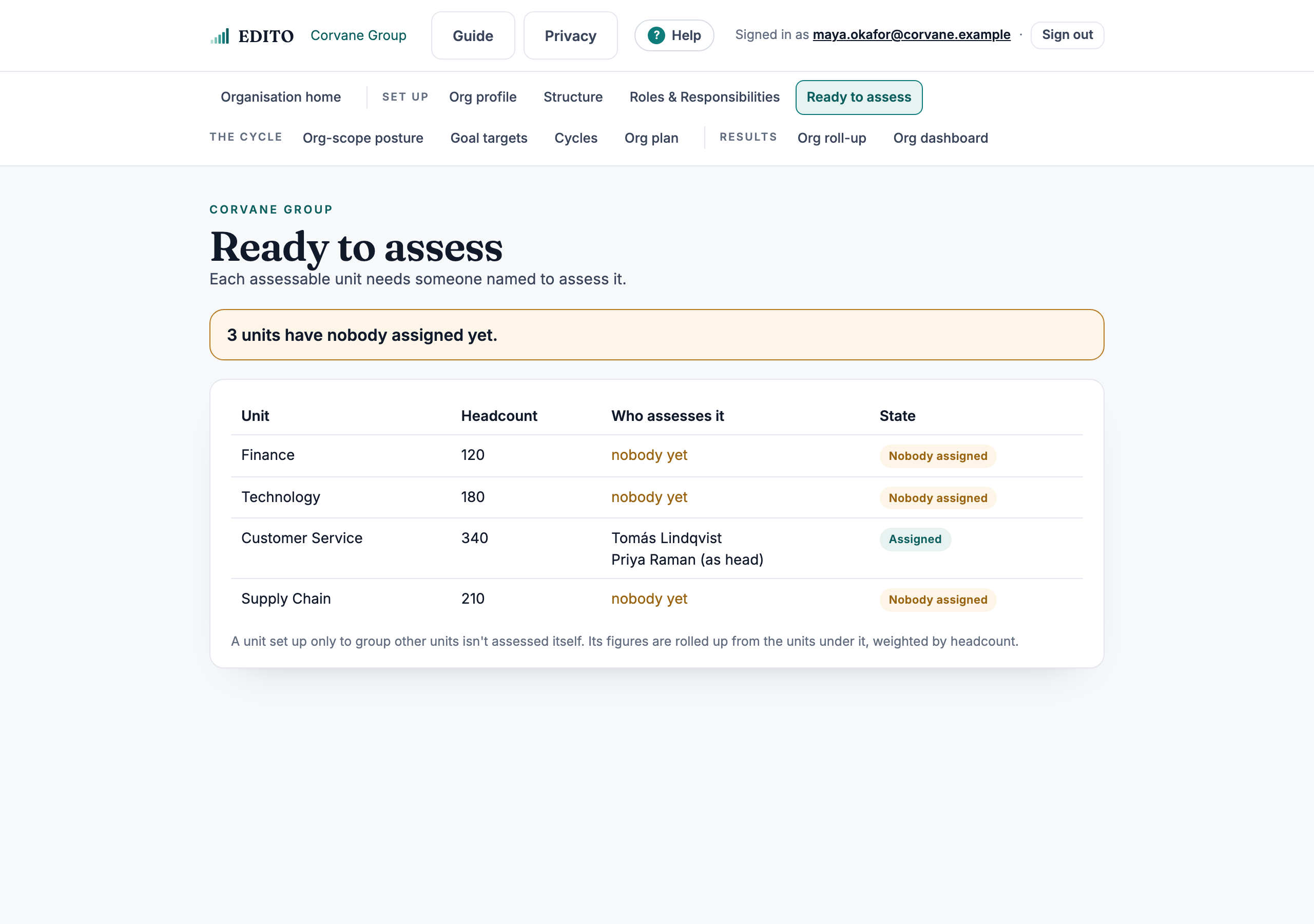
- 1How many units still have nobody assigned.
- 2Each assessable unit, its headcount and who assesses it.
- 3Assigned or Nobody assigned.
- 4Units that group others are rolled up, not assessed.
?What it is
Each assessable unit needs someone named to assess it. This page shows, unit by unit, whether that is true.
👤Who does it
✓Before you start
- Your structure (1.5) and your invitations (1.6) are in place.
→How to do it
- Read the bar at the top. If it says a number of units have nobody assigned, those rows read Nobody assigned.
- For each such unit, invite an assessor or a head on Roles & Responsibilities (1.6).
- Come back here. When every row reads Assigned, every unit has someone to assess it. A person still invited can assess once they accept, and assessing also needs the company posture set.
⚙How it works
- A unit counts as Assigned when it has an assessor, its own head, a head on a unit above it, or a pending invitation that hasn't expired. A head above is shown as “Covered by the head of …”.
- A unit set up only to group other units isn't assessed itself. Its figures are rolled up from the units under it, weighted by headcount.
⚑What it is not
- Not a progress tracker. It shows who is named, not whether anyone has started or finished.
- Not where a cycle opens. A sponsor opens the cycle (2.1).
!If you see this
| 3 units have nobody assigned yet. | Those units have no assessor, no head on or above them, and no pending invitation. Invite someone on 1.6. |
| nobody yet | The same, for that one row. |
»What's next
2.1 Company posture — start the assessmentThe assessment cycle
Repeated every cycle. The sponsor opens the cycle, sets the company posture (the one prerequisite for any assessment) and the goals each unit plans against. Then each unit assesses, reads its result, plans, tracks and re-assesses.
Company posture
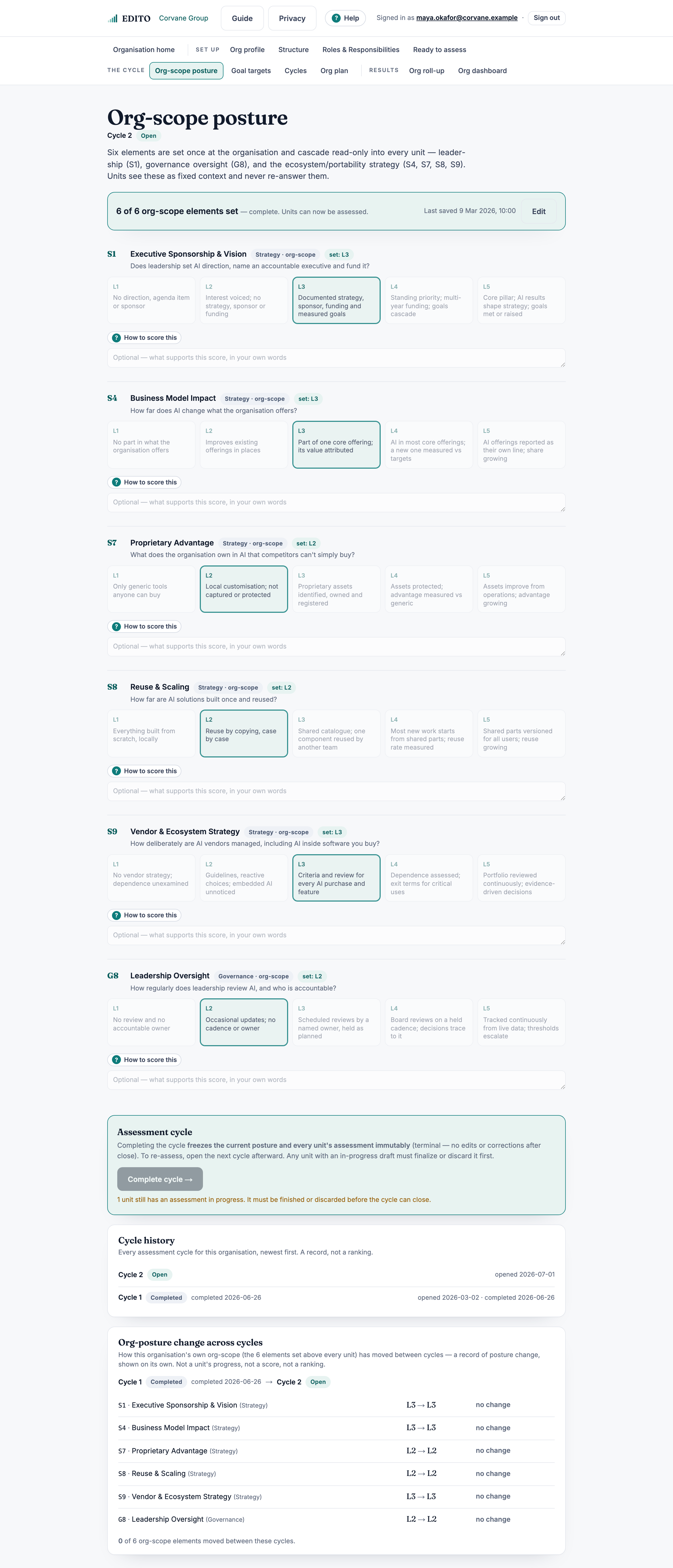
- 1How many of the six elements are set.
- 2Edit, to change the posture.
- 3Each element and the level set for the organisation.
- 4Close this cycle, or open the next.
- 5How the posture has moved between cycles.
?What it is
The six elements that describe the whole organisation rather than one unit. The sponsor sets them each cycle, and they arrive already answered, read-only, in every unit's assessment. On screen this page is called Org-scope posture.
👤Who does it
Only the sponsor opens and closes a cycle.
✓Before you start
- A cycle is open. Between cycles, the sponsor opens the next one on this page.
- To close a cycle, all six company posture elements are set and no unit has an assessment in progress.
→How to do it
- Open Org-scope posture and select Edit.
- For each element, pick the level that matches the organisation today.
- For any score above 3, write a short note.
- When Reason for this change appears, say briefly why the posture is changing.
- Select Save. The count above the elements shows how many of the six are set.
- Opening and closing a cycle happen on this page, under Assessment cycle.
- To close the open cycle, select Complete cycle →, then Complete cycle to confirm.
- To start the next round, select Open next cycle →.
⚙How it works
- Units can be assessed only once all six are set. It is the one thing every assessment needs.
- A change while the cycle is open is recorded with its reason. A unit whose saved result it moved is told so on that result.
- When the cycle closes, the posture is kept with it, and the next cycle starts from it.
- The first cycle opens when your workspace is set up. After that, the sponsor opens each new cycle.
- Between closing one cycle and opening the next, nothing can be assessed and the company posture is read-only.
⚑What it is not
- Not answered again by each unit.
- Not an average of the units' answers.
- Closing is not reversible. A closed cycle cannot be reopened.
- A cycle has no deadline. It stays open until the sponsor closes it.
!If you see this
| Add a note to each element scored above 3 before saving | Each element scored above 3 needs a note before you can save. |
| Add a reason to save this change. | Say briefly why the posture is changing. The reason is recorded with the change. |
| Cycle closed — read-only | The cycle is closed. Open the next cycle on this page to change the posture. |
| This cycle closed while the page was open, so nothing was saved. Reload the page to see where things stand. | The cycle closed while you had the page open, so nothing was saved. Reload. |
| 1 unit still has an assessment in progress. It must be finished or discarded before the cycle can close. | Someone has started an assessment and not saved it. It must be finished or discarded before the cycle can close. |
| Set all six org-scope elements (6/6) before completing the cycle | Set every company posture element first, then close the cycle. |
Goals
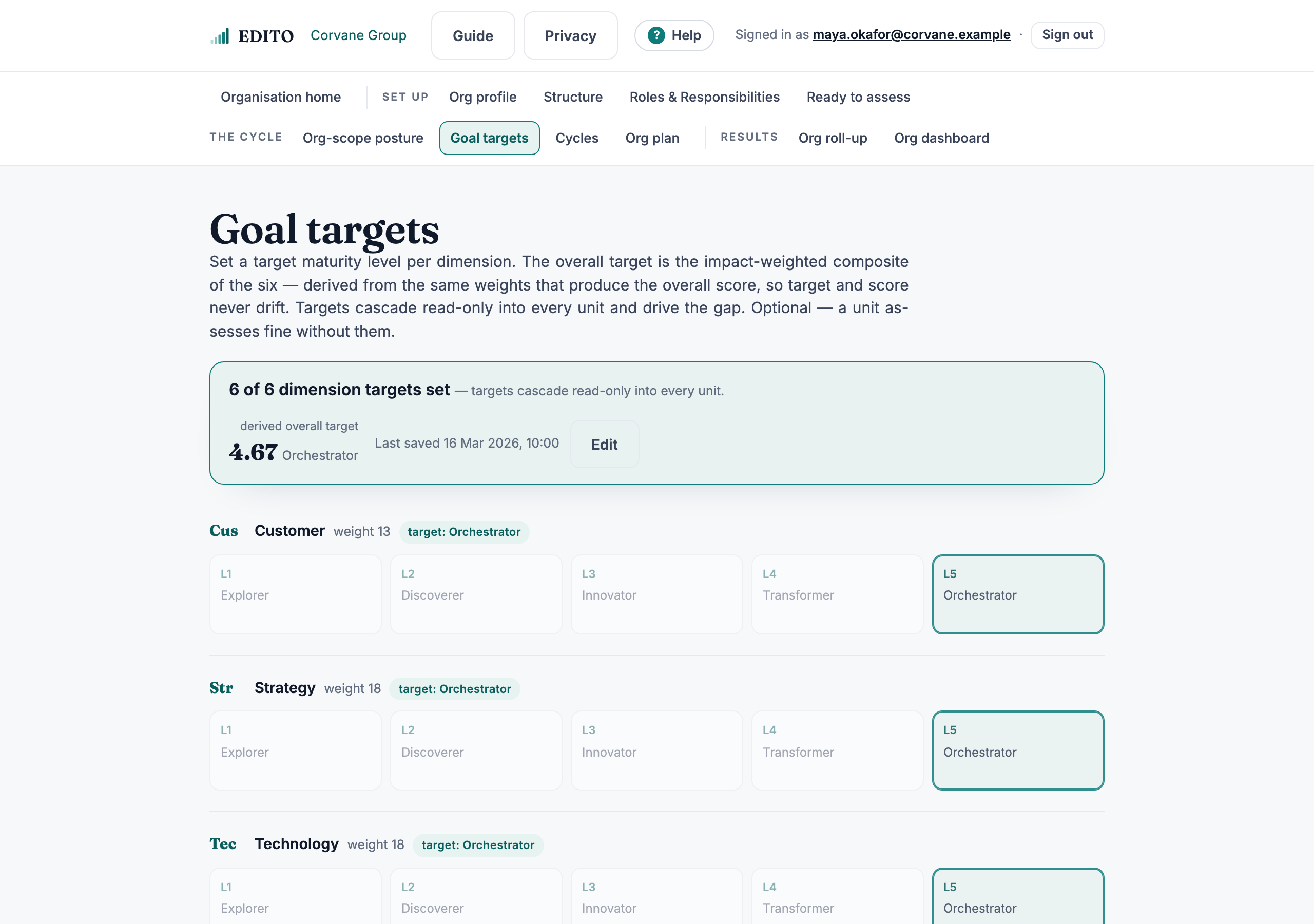
- 1How many of the six dimensions have a goal.
- 2The overall goal, derived from the dimension goals.
- 3Edit, to change a goal.
- 4Each dimension, its weight and its goal.
- 5The five levels to choose from.
?What it is
The level the organisation aims for in each dimension. Results are measured against them, and a unit needs them before it can plan. On screen this page is called Goal targets.
👤Who does it
✓Before you start
- Nothing. Goals can be set at any time, and a unit can be assessed without them (2.4).
→How to do it
- Open Goal targets and select Edit.
- For each dimension, pick its goal level.
- When Reason for this change appears, say briefly why the goals are changing.
- Select Save. When all six dimensions have a goal, the derived overall target appears.
⚙How it works
- The overall goal is worked out from the six dimension goals, with the same weights as the overall score. It appears only when every dimension has a goal.
- Goals carry over from one cycle to the next and can be changed while a cycle is open. Closing a cycle keeps that cycle's goals with it.
- A unit can plan a dimension once that dimension has a goal (2.6).
- If a goal changes after an action was written against it, the action is marked as changed or superseded (2.6).
⚑What it is not
- Not needed to assess.
- Not set unit by unit. Every unit plans against the organisation's goals.
!If you see this
| Set a target first | Shown when you point at the greyed-out Plan link. No dimension has a goal yet, so Plan is not available. Set at least one. |
| No dimension has a resolved target yet — set targets at the org before planning. | The same, on the plan page. |
| Add a reason to save this change. | Say briefly why the goals are changing. |
Cycles
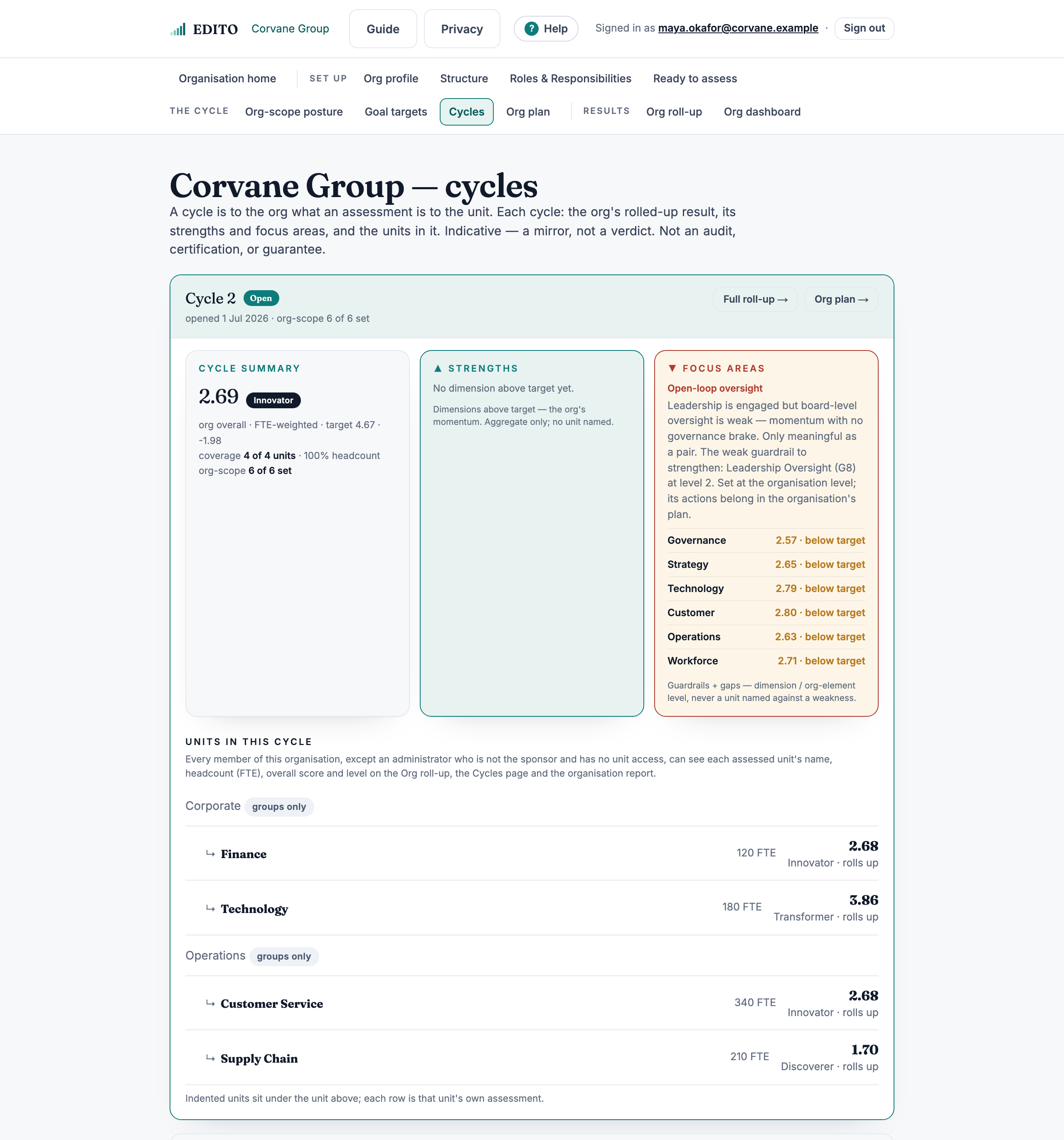
- 1Each cycle, newest first — open or completed.
- 2The organisation's combined result, against its goal.
- 3Strengths and focus areas — no unit is named.
- 4The units in the cycle.
- 5Full roll-up → and Org plan → for that cycle.
?What it is
A cycle is one round of assessment. This page shows each cycle: the organisation's combined result, its strengths and focus areas, and the units in it.
👤Who does it
Everyone except an administrator who is not the sponsor and has no unit access sees each assessed unit's name, headcount, overall score and level here. Flags are only ever counted, never shown against a unit.
✓Before you start
- Nothing. The first cycle opens when your workspace is set up.
→How to do it
- Each cycle has a card, newest first: the organisation's combined result against its goal, its strengths and focus areas, and its units.
- Full roll-up → opens that cycle's roll-up (3.2); Org plan → opens its plan (2.7).
- Opening and closing a cycle happen on Org-scope posture (2.1), under Assessment cycle.
⚙How it works
- Closing a cycle keeps it exactly as it was: the company posture, the goals, every unit's assessment and the units themselves.
⚑What it is not
- Not where a cycle opens or closes. The sponsor does that on Org-scope posture (2.1).
- Not a ranking of units.
!If you see this
| not assessed | That unit hasn't saved an assessment this cycle. |
»What's next
2.4 Assess a unit — assess a unitAssess a unit
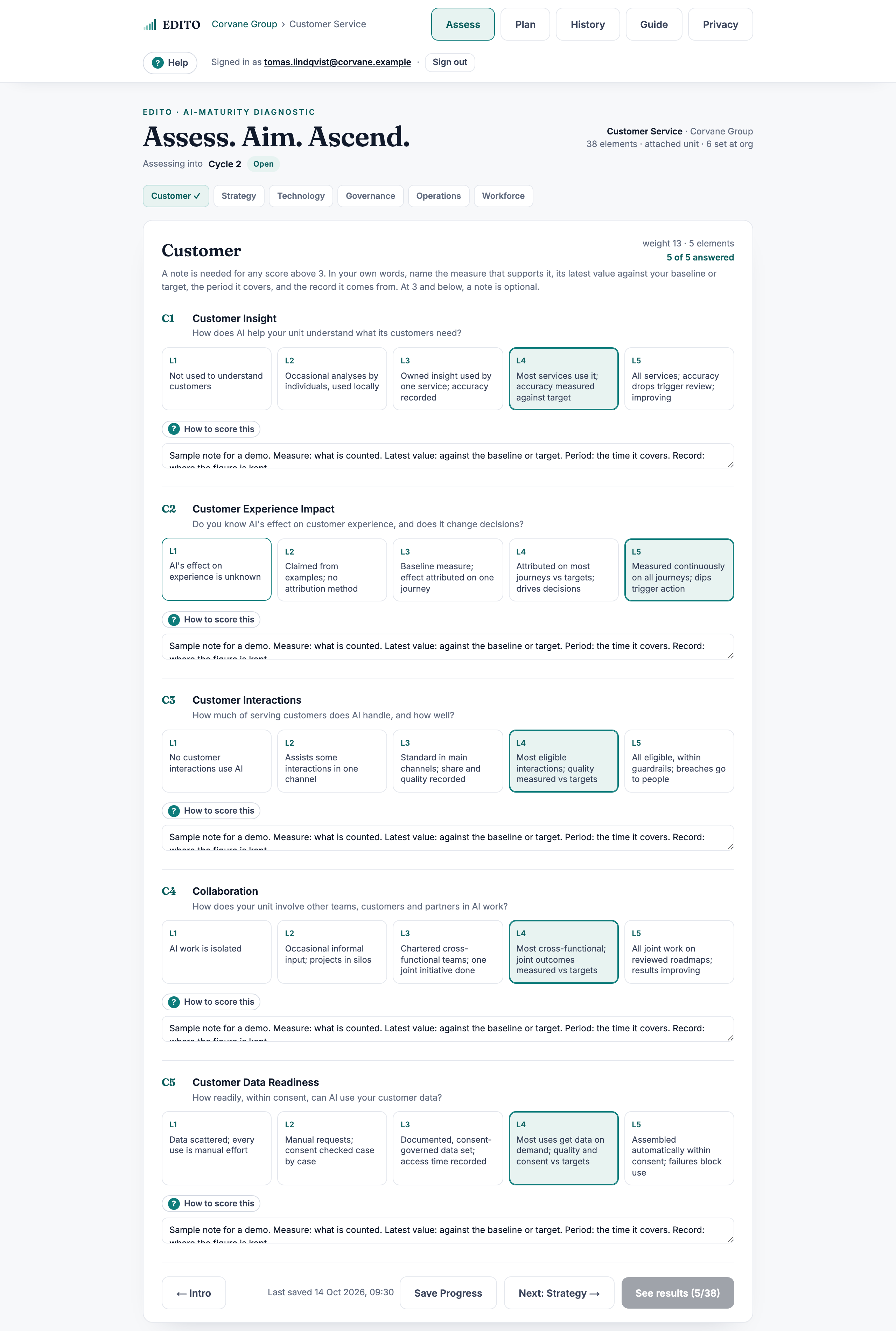
- 1The six dimensions — work through each.
- 2The element's question and its five levels.
- 3The note — needed above 3.
- 4Save status — a new assessment saves as you go.
- 5See results, with how many are answered.
?What it is
Where a unit's assessment is answered. Every element of the framework is scored from 1 to 5 for this unit, as it stands in routine work today.
👤Who does it
When a unit head above the unit or the sponsor writes the answers, the result says so.
✓Before you start
- A cycle is open (2.1).
- The sponsor has set all six company posture elements (2.1).
- You are named to assess this unit — its assessor or its head — or you are the sponsor.
- Goals (2.2) are not needed to assess, but a plan needs them.
→How to do it
- Open the unit and choose Assess. Read the honest-use principles, then Start the assessment.
- Pick a dimension at the top. For each element, read the question and pick the level that matches routine reality.
- For any score above 3, write a short note in your own words. Open How to score this on any element for its five level descriptions.
- Work through all six dimensions. See results shows how many elements you have answered.
- When every element has a level, select Save assessment.
⚙How it works
- On a new assessment, progress saves as you go — a level as soon as you pick it, a note a few seconds after you stop typing — so you can leave and Resume the assessment later. Edit answers on a saved result does not: save your changes before you leave.
- The six company posture elements arrive already answered and cannot be changed here.
- A unit can be assessed more than once while the cycle is open; the latest saved assessment is the one that counts. Edit answers corrects a saved assessment; a correction needs a reason and is recorded.
- Once the cycle is closed, the assessment is kept exactly as saved.
⚑What it is not
- Not a test with right answers.
- No uploads — notes are written text only.
- Not a judgement of the people answering.
!If you see this
| Pick a level for every element. The score doesn't count without a level. | Some elements in this dimension have no level yet. |
| Add a note to each element scored above 3 before saving | Save is waiting on a note. The list above Save names the elements that need one. |
| Could not save progress (network). | Your last change did not reach EDITO. Check your connection; your next change tries again. |
| Something went wrong and we couldn't confirm what was saved. Reload the page to check. | EDITO could not confirm whether your last action was saved. Reload the page to see what was saved, and do it again only if it is missing. |
| Answers changed since you opened this unit. Nothing was saved. Reload for the latest; answers on screen will be replaced. | The answers for this unit were saved since this screen last loaded or saved them — usually by someone else — so your save was stopped. Reload to see the latest answers before you save again. |
»What's next
2.5 The result — read what the assessment showsThe result
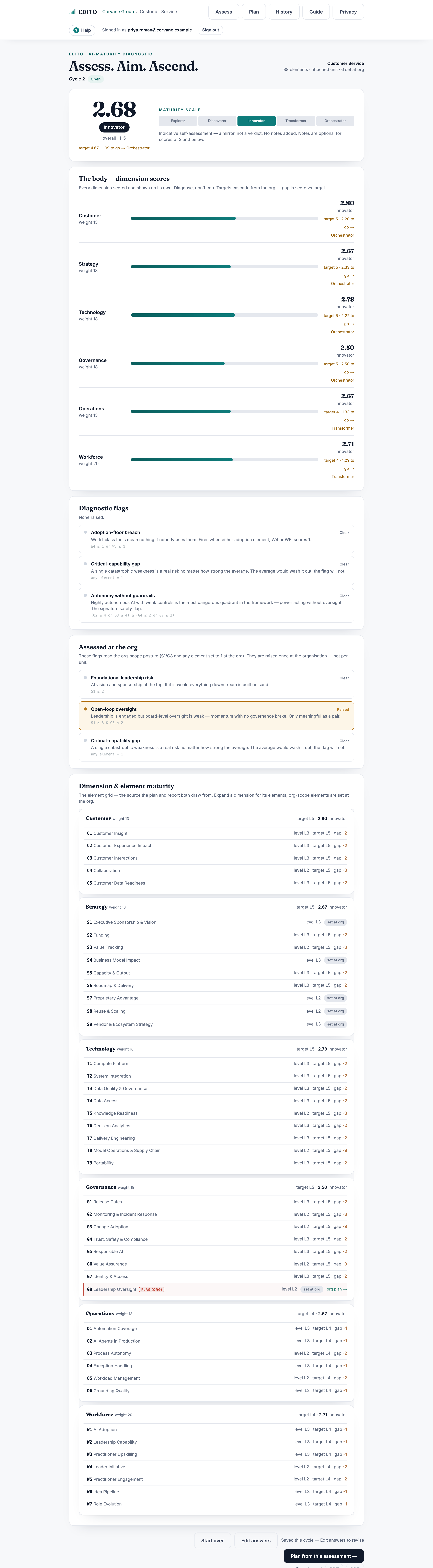
- 1The overall score and level.
- 2The maturity scale.
- 3The six dimensions, each on its own.
- 4Flags — risks to address first.
- 5Next: plan, what changed, download.
?What it is
A unit's result for one assessment: its overall level, each of the six dimensions, every element on its own score, any flags, and the gap to each goal.
👤Who sees it
An administrator runs the workspace. The role alone cannot see any assessment; an administrator who also holds unit access can, for those units.
✓Before you start
- The unit has a saved assessment (2.4).
→How to read it
- Start with the overall level on the maturity scale.
- Read each dimension on its own — a strong dimension never hides a weak one.
- Check the flags. Each names a risk to address first: Foundational leadership risk · Open-loop oversight · Adoption-floor breach · Critical-capability gap · Autonomy without guardrails.
- Where goals are set, compare each dimension with its goal.
- Then act: Plan from this assessment →, See what changed → (from the second assessment on), or download the report (3.3).
⚙How it works
- The result is worked out afresh from the saved answers each time it is opened; scores are never typed in.
- The overall score weights the six dimensions by their impact (0.2).
- A flag points at a risk. It never lowers or caps a score.
- If someone above the unit wrote the answers, the result says so.
⚑What it is not
- Not an audit, certification, assurance or guarantee.
- Not a ranking of units or people.
- Not a financial figure.
!If you see this
| Set a target first | Shown when you point at the greyed-out Plan link. Planning needs goals. The sponsor sets them (2.2). |
»What's next
2.6 A unit's plan — turn the gaps into actionsA unit's plan
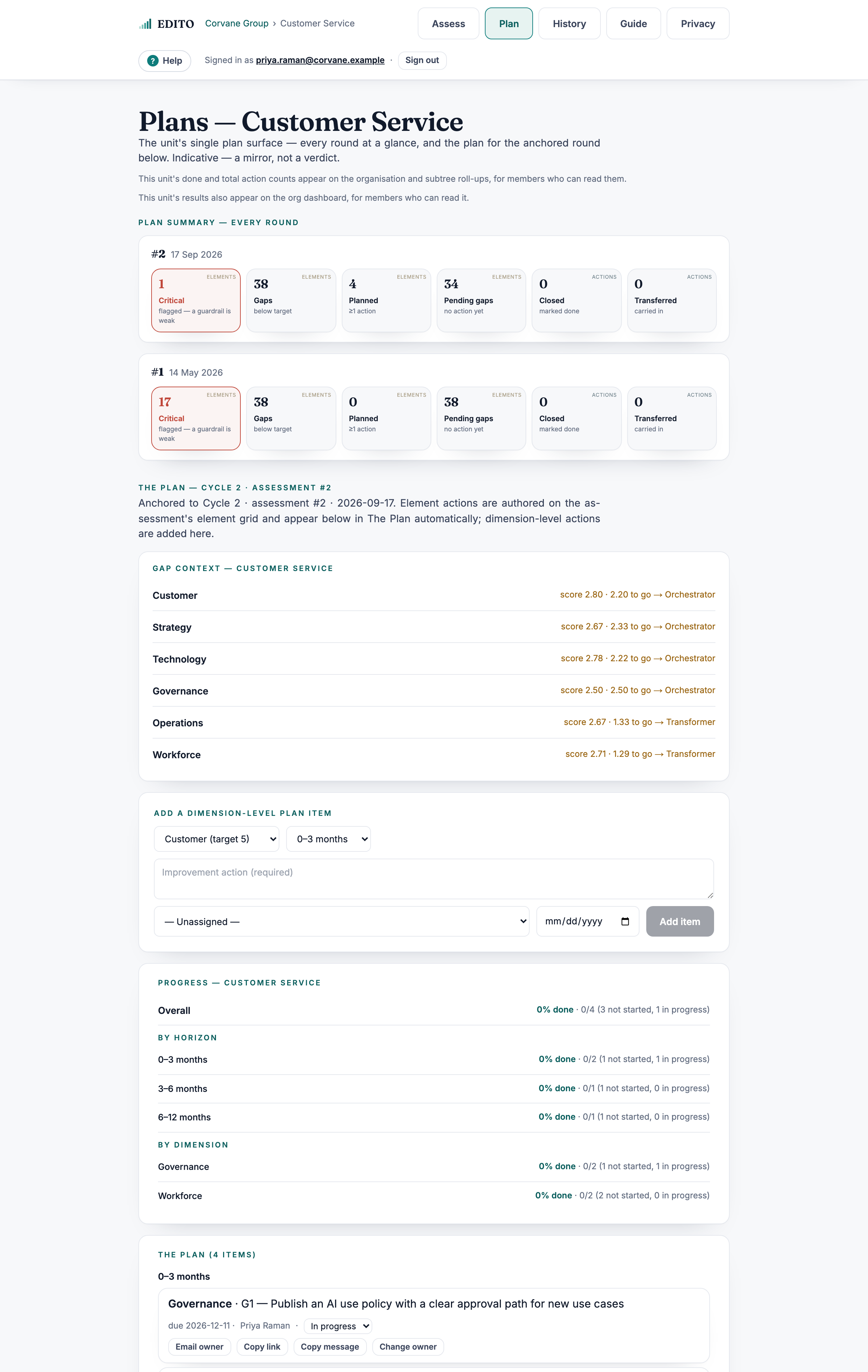
- 1The gap to goal on each dimension.
- 2Add a dimension-level action.
- 3Progress, by horizon and by dimension.
- 4Each action's status.
- 5Change owner — for the sponsor or a head over the unit.
?What it is
Where a unit turns its gaps into actions. Each action has a horizon, and can have an owner and a target date. It is written against one assessment, by default the cycle's latest. If the unit is assessed again in the same cycle, actions written against the earlier assessment no longer show here or count on the roll-up.
👤Who does it
An executive can read every plan and change none. Anyone in the organisation can be named an action's owner, but only people with access to this unit see its plan. For an owner to update their action, give them the assessor role on this unit on People. They can then also answer its assessment.
✓Before you start
- The unit has a saved assessment in the open cycle (2.4).
- At least one dimension has a goal (2.2).
→How to do it
- To plan element by element, open the result (2.5) and select Plan from this assessment →. Each element's row has its own button to add an action.
- For an action that covers a whole dimension, open the unit's Plans page and use Add a dimension-level plan item. Pick the dimension and write the action.
- Pick an owner, a target date and a horizon: 0–3, 3–6 or 6–12 months.
- Select Add item.
- As work moves, set each action's status (2.8).
⚙How it works
- An action is tied to the goal it was written against. If that goal changes, the action is marked changed; Accept the change ties it to the new goal.
- When a new cycle opens, unfinished actions can be carried forward (Transfer) or closed (Close).
- This unit's done and total action counts appear on the organisation and subtree roll-ups, for members who can read them.
- To give an action a different owner, use Change owner on its row. The sponsor, or a head over the unit, sees it while the cycle is open.
⚑What it is not
- Not a score. Finishing actions does not change the unit's level; the next assessment does (2.9).
- Not a messaging tool. Nothing is emailed for you.
!If you see this
| This item's goal changed after it was written. Re-anchor it on the plan before you change its status. | The action's goal moved. Select Accept the change, then set its status. |
| in progress (locked) | Its status can't change until the action is tied to the current goal. |
| This cycle closed while the page was open, so nothing was saved. Reload the page to see where things stand. | The cycle closed while you had the page open, so nothing was saved. Reload. |
The organisation's plan
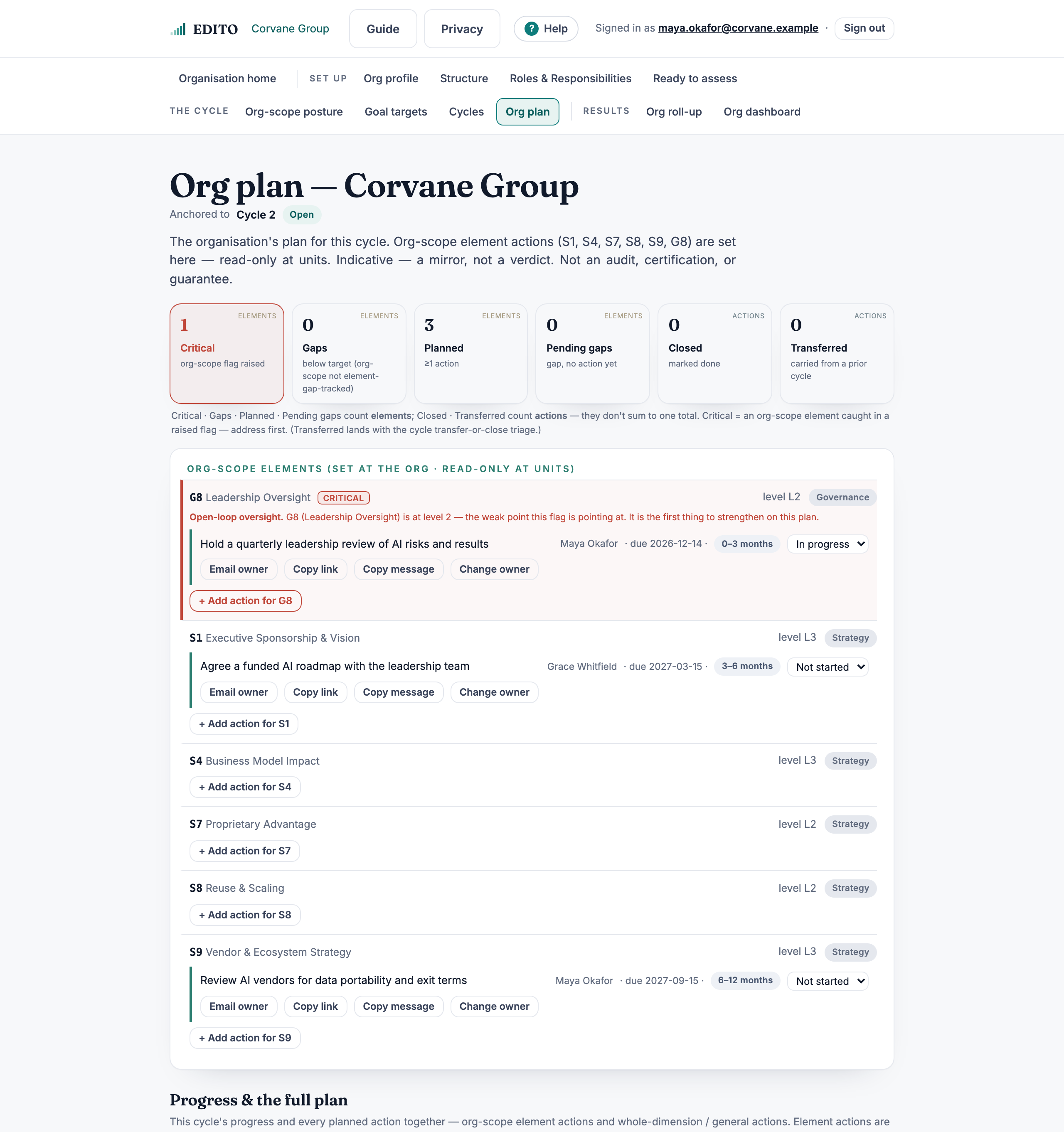
- 1This cycle's counts, critical first.
- 2Each company posture element — flagged ones first.
- 3Add an action to an element.
- 4Change owner — for the sponsor only.
- 5Every action together, with progress.
?What it is
The plan for the six company posture elements, and for the organisation as a whole. Units plan their own elements in 2.6.
👤Who does it
Everyone who can read this plan sees who owns each action. A due date is shown to the sponsor and to the action's owner; others see date set. Only the sponsor can update an action here, whoever owns it.
✓Before you start
- A cycle is open (2.1).
- An element can be planned once its dimension has a goal (2.2).
→How to do it
- Open the organisation's plan. Each company posture element has its own row, flagged elements first.
- On an element's row, add an action with its owner, target date and horizon.
- For an action that isn't tied to one element, use Add item under Progress & the full plan.
- As work moves, set each action's status (2.8).
⚙How it works
- Changed and superseded actions work as on a unit's plan (2.6).
- Between cycles there is nothing to plan against. The plan opens again with the next cycle.
- A closed cycle's plan stays readable and can't be changed, except that an action carried forward or closed when the next cycle opens moves to its retained history. Reports keep the counts as they were at close.
- To give an action a different owner, use Change owner on its row. Only the sponsor sees it, while the cycle is open.
⚑What it is not
- Not a combined view of the units' plans. Their progress is counted on the roll-up (3.2).
!If you see this
| Set a Strategy target first to plan this element. | That element's dimension has no goal yet. Set one (2.2). |
| date set | The action has a due date. Only its owner and the sponsor see it. |
| This item's goal changed after it was written. Re-anchor it on the plan before you change its status. | The action's goal moved. Select Accept the change, then set its status. |
| This cycle closed while the page was open, so nothing was saved. Reload the page to see where things stand. | The cycle closed while you had the page open, so nothing was saved. Reload. |
»What's next
2.8 Tracking progress — track progressTracking progress
?What it is
How a plan's progress is counted, on a unit's plan and on the organisation's.
👤Who does it
On the organisation's plan, only the sponsor sets status.
✓Before you start
- The plan has actions (2.6, 2.7).
→How to do it
- Change an action's status: Not started, In progress or Done. It saves at once.
- Read Progress above the list: the share done overall, by horizon and by dimension.
- Tie any changed action to its current goal (2.6) so it counts again.
⚙How it works
- Progress counts live actions only. Changed and superseded actions are listed separately and don't count.
- Status can move either way, Done back to In progress included.
- Each status change is recorded.
- The roll-ups count each unit's done and total actions, never a percentage (3.2).
⚑What it is not
- Not a score: plan progress never changes a unit's level. The level moves when the unit is assessed again (2.9), when its answers are edited, or when the sponsor changes the company posture during the cycle.
- Not a ranking of units by progress.
!If you see this
| No live items to track yet. | Nothing counts yet. Add an action, or tie the changed ones to their current goal. |
| ⚠ 2 items excluded from live progress — … | Those actions' goals moved or were removed. They are kept, but not counted. |
Re-assess: history and what changed
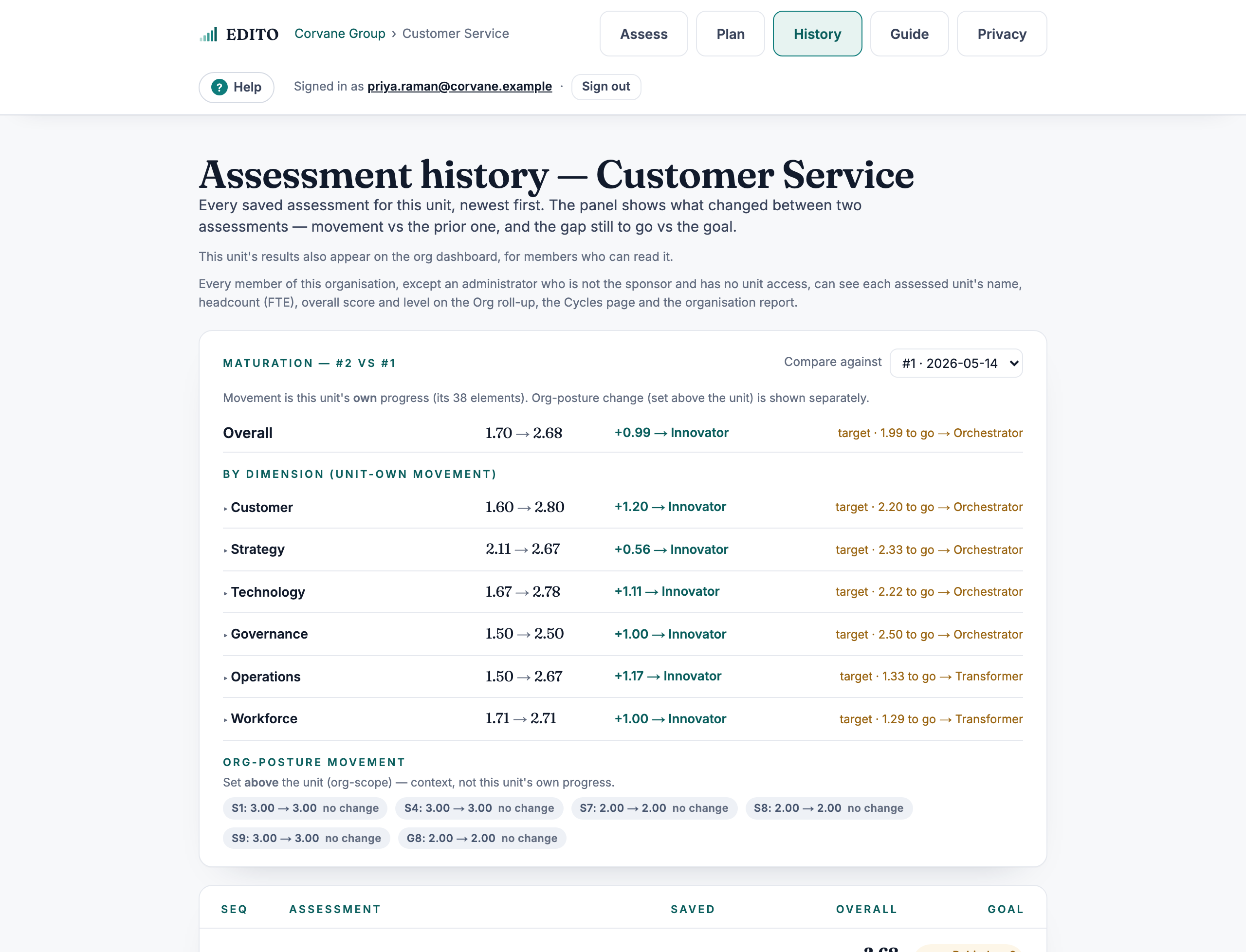
- 1Pick the assessment to compare with.
- 2How far the overall moved, and the gap still to go.
- 3Open a dimension to see its elements move.
- 4Set above the unit, so shown apart.
- 5Every saved assessment, newest first.
?What it is
Every saved assessment of a unit, newest first, and what moved between the latest and any earlier one.
👤Who does it
Re-assessing happens on Assess (2.4), by the people who can assess.
✓Before you start
- The unit has a saved assessment (2.4). Comparing needs two.
→How to do it
- Open the unit's History.
- To re-assess, open Assess in an open cycle and save a new assessment (2.4).
- The panel compares the latest assessment with the one before. To compare with another, pick it under Compare against.
- Open By dimension (unit-own movement) for each dimension's movement and the distance still to its goal.
⚙How it works
- Movement is the unit's own progress on its own elements. A change to the company posture is shown separately, under Org-posture movement.
- Every saved assessment is listed. Within a cycle, the latest one counts.
- See what changed → on a result always compares the unit's latest assessment with the one before it, whichever result you started from.
- A correction changes the saved assessment in place. The result's edit history lists each correction and its reason (2.5).
- Changes to the unit's headcount are listed under Headcount changes.
⚑What it is not
- Not a comparison between units.
- Not a verdict on the people who answered.
!If you see this
| Only one assessment so far — re-assess from the Assess tab to see maturation (what changed). | Movement needs two assessments. Assess the unit again (2.4). An executive can't assess; ask the unit's assessor or head. |
| Behind on 2 dimensions | Two dimensions with goals are below them, even if the overall score meets its goal. |
| No target | No dimension had a goal to compare with (2.2). |
Dashboards and reports
The whole picture, read across every result: the Org dashboard, roll-ups, the score spread, and the reports you download and share.
Org dashboard
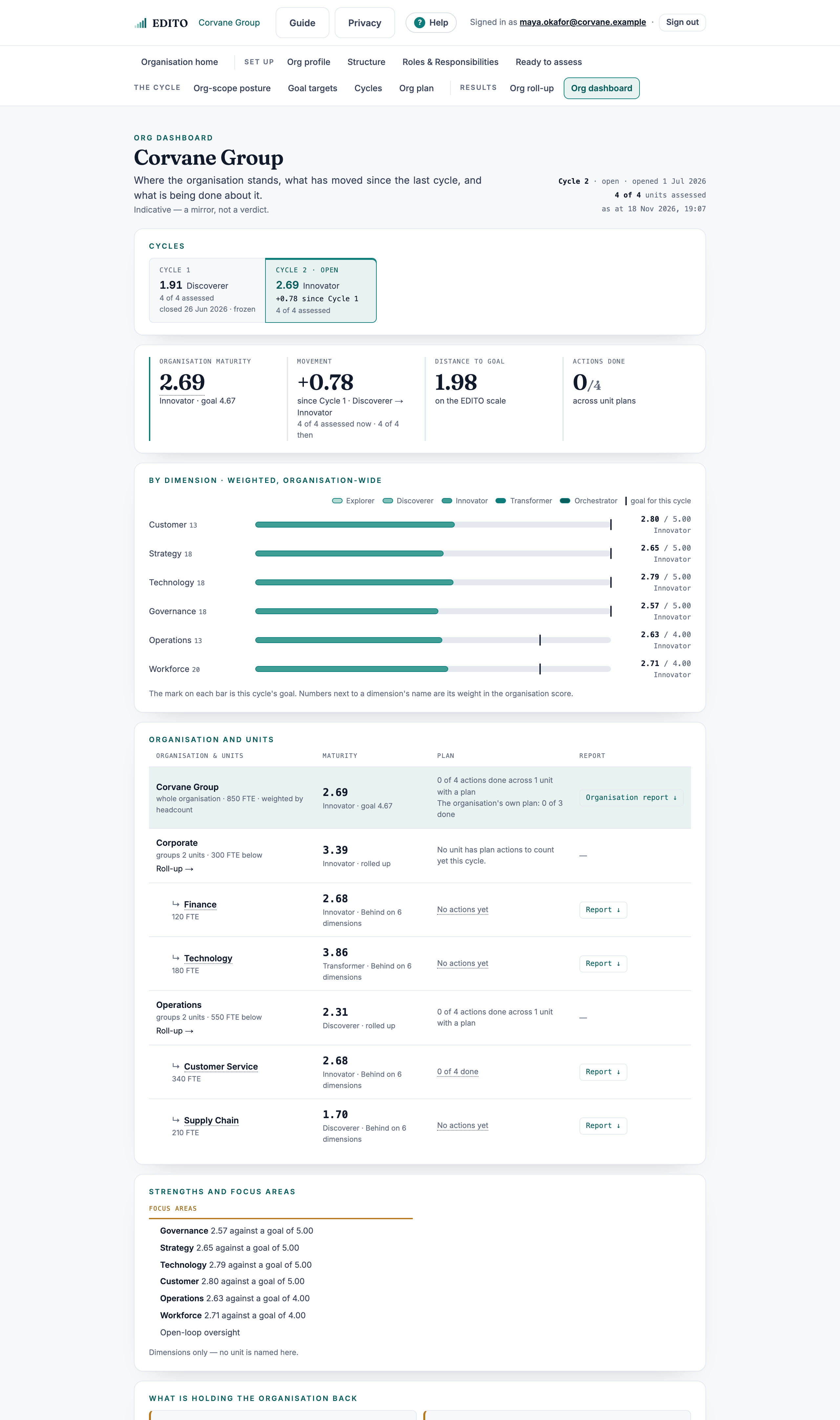
- 1The four headline figures.
- 2Each cycle's score — open one to see the dashboard for that cycle.
- 3Each dimension against this cycle's goal.
- 4The organisation and each unit, with plan and report.
- 5Weaknesses counted, never named.
?What it is
Where the organisation stands, what has moved since the last cycle, and what is being done about it. Between cycles it shows the last closed cycle.
👤Who sees it
Everyone else sees no link to it.
✓Before you start
- At least one unit has a saved assessment in the cycle (2.4).
- Movement needs a closed cycle before this one.
→How to read it
- Start with the four figures under the cycles strip: Organisation maturity, Movement, Distance to goal and Actions done.
- Under Cycles, each cycle has a cell. A past cycle opens the dashboard for that cycle.
- By dimension · weighted, organisation-wide shows each dimension against this cycle's goal.
- The Organisation & units table lists each unit with its maturity and plan. Report ↓ downloads a unit's report; Organisation report ↓ downloads the organisation's (3.3).
- What is holding the organisation back counts how many units carry each weakness.
⚙How it works
- Scores are weighted by headcount, as on the roll-up (3.2). Action counts are not weighted, and flags are counted.
- Movement compares this cycle with the one before. When the two cycles counted different units, a line under it says so.
- Counted, not named. An organisation-wide view shows how many units carry each weakness, never which ones. A unit's own detail, its flags included, is seen only by the people with access to that unit. In an organisation with one unit, the count names it.
- Units are listed in the order of your structure, never by score.
- The organisation's files carry no due dates; a unit's report keeps its actions' due dates. No exported file carries an email address. Once a file leaves EDITO, its audience is nobody's to control.
⚑What it is not
- Not a ranking of units.
- Not where anything is changed. It reads results; the pages behind it are where work is done.
!If you see this
| No unit has a final assessment in this cycle yet. | No unit has saved an assessment in this cycle yet. |
| No earlier cycle to compare with yet. | There is no closed cycle before this one to compare with. |
| No goal yet — the overall goal appears once all six dimension targets are set. | Set a goal for every dimension (2.2). |
| Not yet assessed this cycle | That unit hasn't saved an assessment this cycle. |
»What's next
3.2 Roll-up — the combined results, page by pageRoll-up
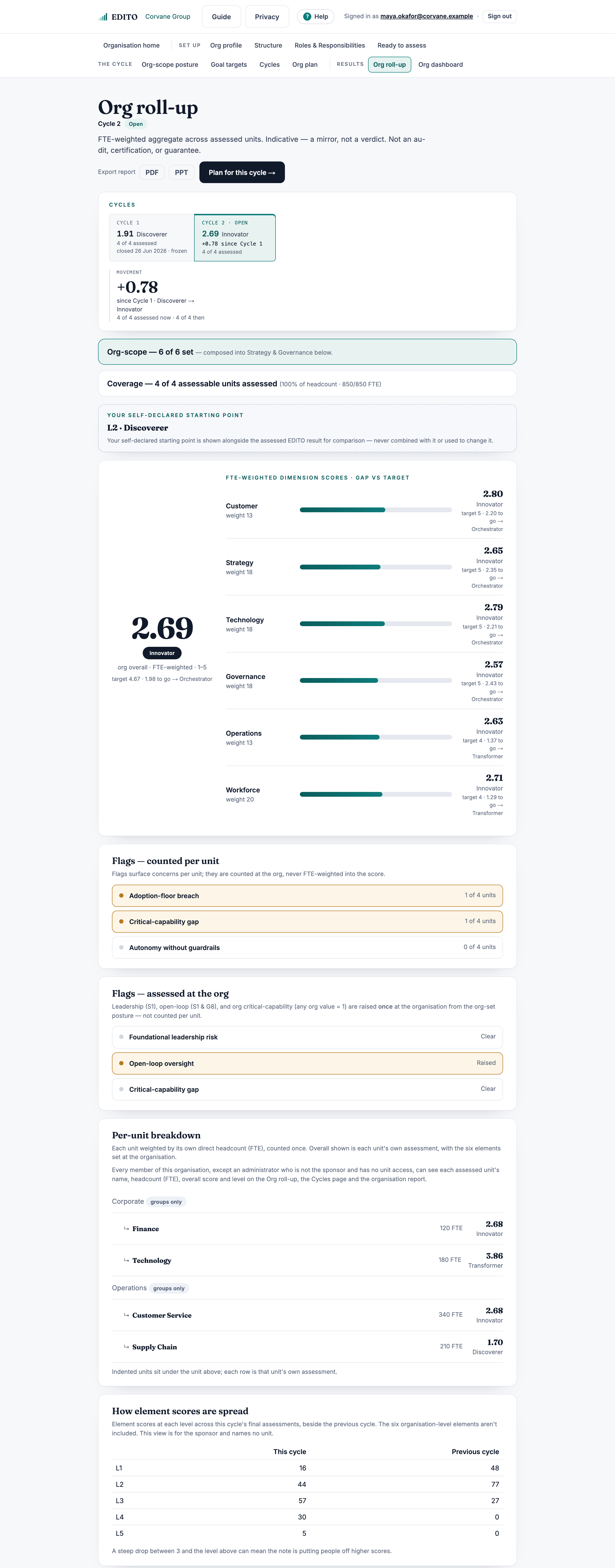
- 1Download as PDF or PowerPoint (3.3).
- 2The organisation's overall, against its goal.
- 3Flags counted per unit, then those assessed at the organisation.
- 4Each unit, weighted by its own headcount.
- 5How element scores are spread — the sponsor only.
- 6Element scores at each level, in the cycle shown.
- 7The same, for the cycle before it.
- 8The step from 3 to the level above.
- 9What a steep drop there can mean.
?What it is
Unit results combined up your structure, weighted by headcount — for the whole organisation, or for one unit and the units beneath it.
👤Who sees it
Everyone except an administrator who is not the sponsor and has no unit access can open the organisation roll-up. It lists every assessed unit by name, with its headcount, overall score and level, so an assessor in one unit can see another unit's score. A unit's roll-up is open to those who can read that unit. Only the sponsor sees the section How element scores are spread.
✓Before you start
- At least one unit has a saved assessment (2.4).
→How to read it
- Check which units are counted. Units not yet assessed are listed, not counted.
- Read each dimension's score against its goal.
- Read the flags: counted per unit, and the ones raised once for the whole organisation.
- Read the per-unit breakdown and plan progress.
- On the organisation roll-up, use Export report for a PDF or PowerPoint (3.3).
- If you are the sponsor, read How element scores are spread on the organisation roll-up: compare the count at each level This cycle with Previous cycle, and look at the step between 3 and the level above.
⚙How it works
- Each unit weighted by its own direct headcount (FTE), counted once. Overall shown is each unit's own assessment, with the six elements set at the organisation.
- Some flags are raised once for the whole organisation, from the company posture, rather than counted per unit.
- Actions marked done in each unit's plan for this cycle, counted as written — not weighted by headcount, and not a score. Units are listed in the order of your structure.
- A closed cycle's roll-up opens from the cycles page (2.3) and is kept as it was.
- How element scores are spread: Element scores at each level across this cycle's final assessments, beside the previous cycle. The six organisation-level elements aren't included. This view is for the sponsor and names no unit.
- "This cycle" is the cycle the roll-up is showing; "Previous cycle" is the cycle opened just before it.
- A steep drop between 3 and the level above can mean the note is putting people off higher scores.
- In a small organisation the counts may come from one or two units. The section names no unit, but it can't hide a unit's scores when there are very few.
⚑What it is not
- Not a ranking of units.
- Not a plain average: a larger unit counts for more.
- The score spread is not a check on any unit or person, and not a reason to lower a score. A score should match routine reality (0.3).
!If you see this
| Nothing to roll up yet | This unit has no assessed units beneath it to combine. Its own result is in 2.5. |
| Not assessed this cycle — no plan yet | That unit has no assessment this cycle, so it has no plan to count. |
| Plan progress is shown for the open cycle only. | You're reading a closed cycle. Plan progress is counted for the open one. |
| No final assessments in this cycle yet. | No unit has a final assessment in this cycle yet. |
Reports — a sample, explained
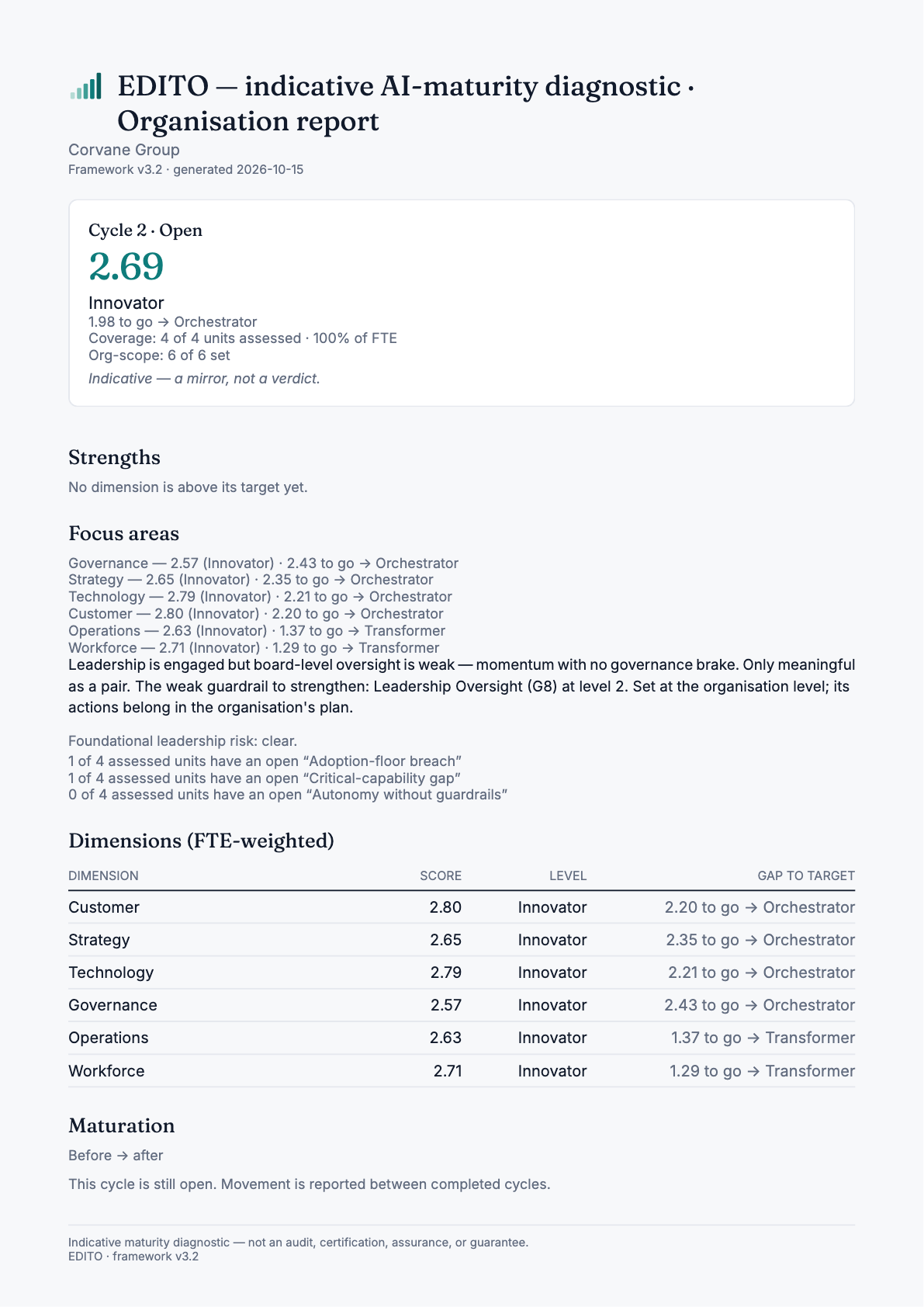
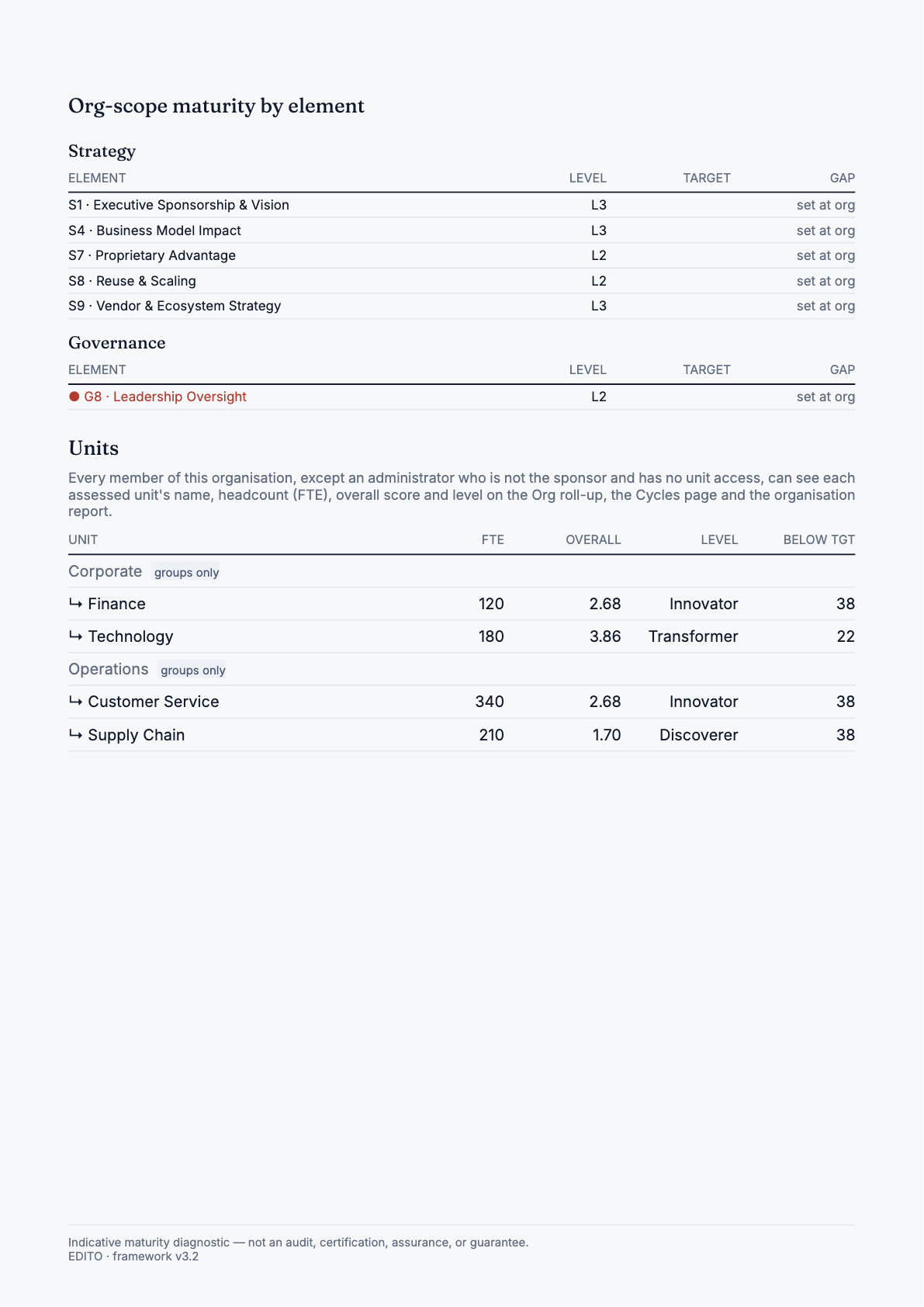
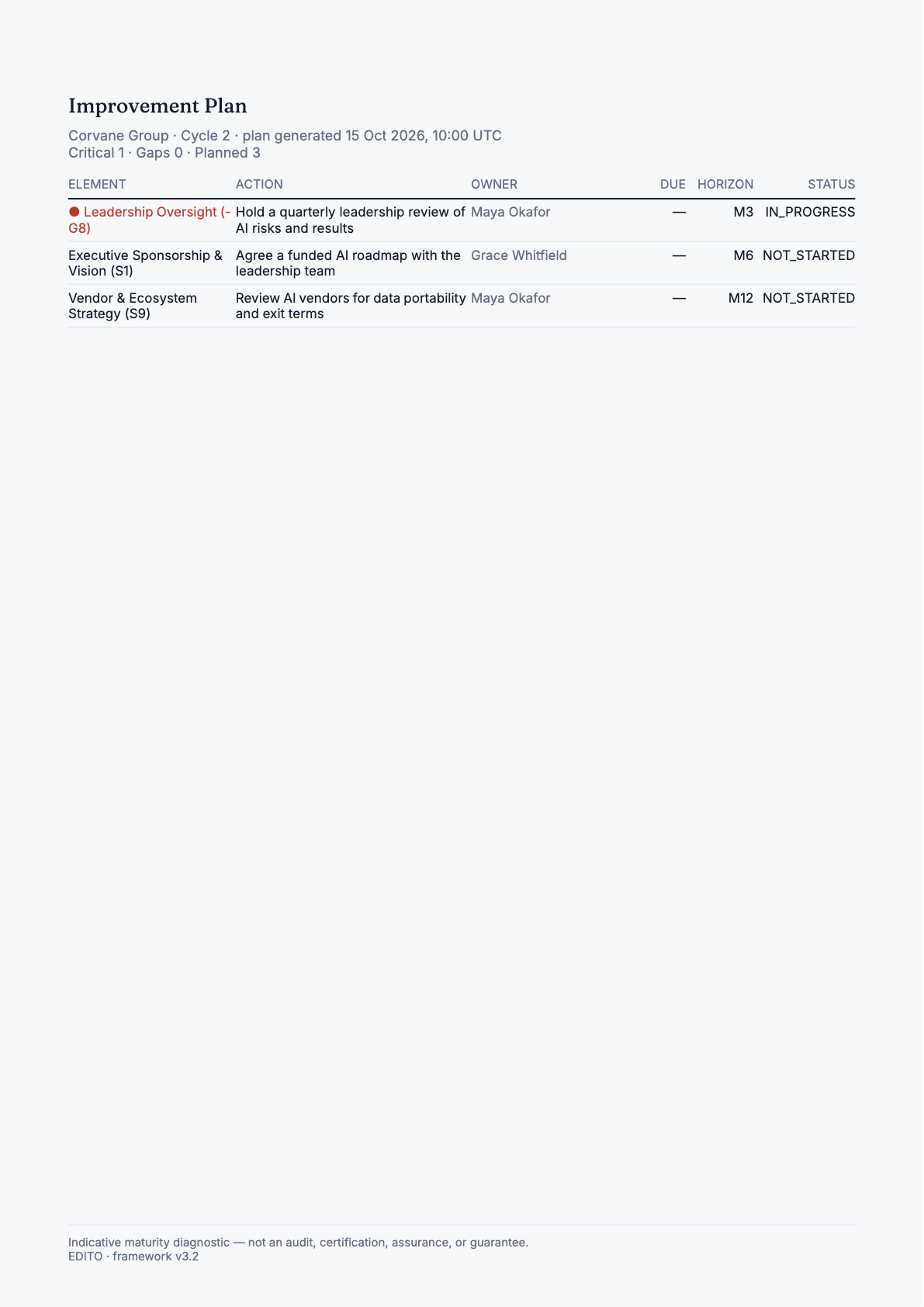
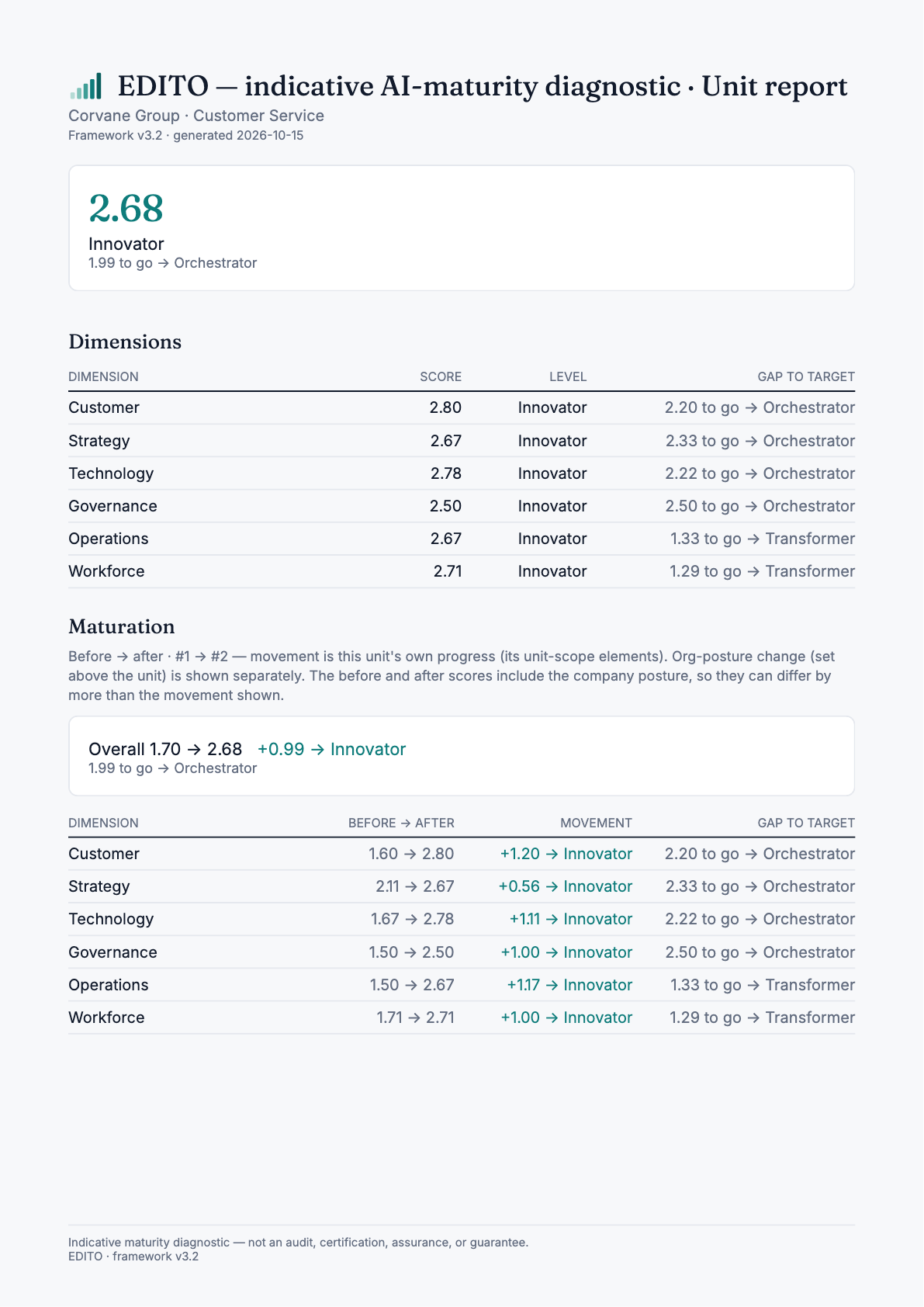
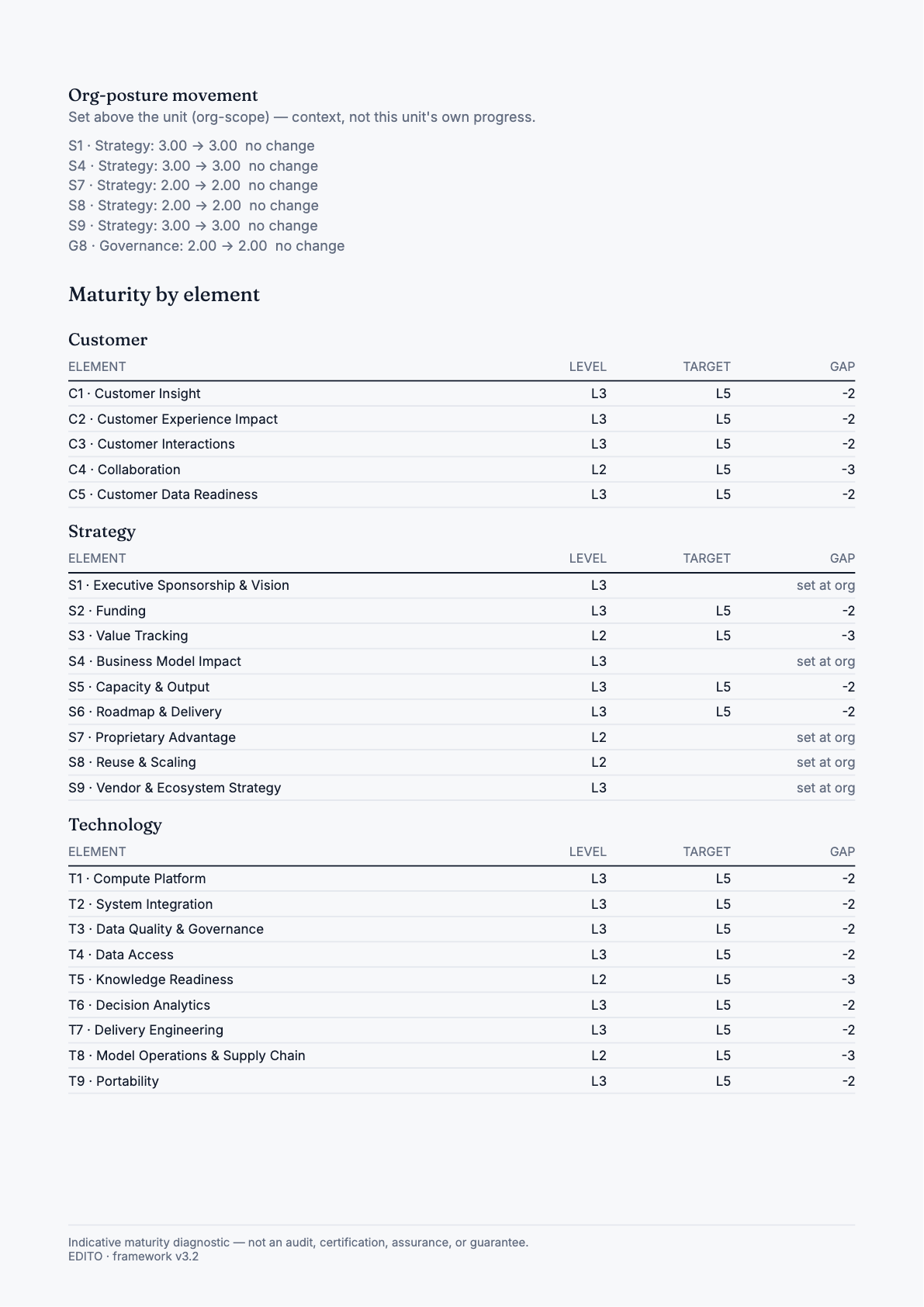
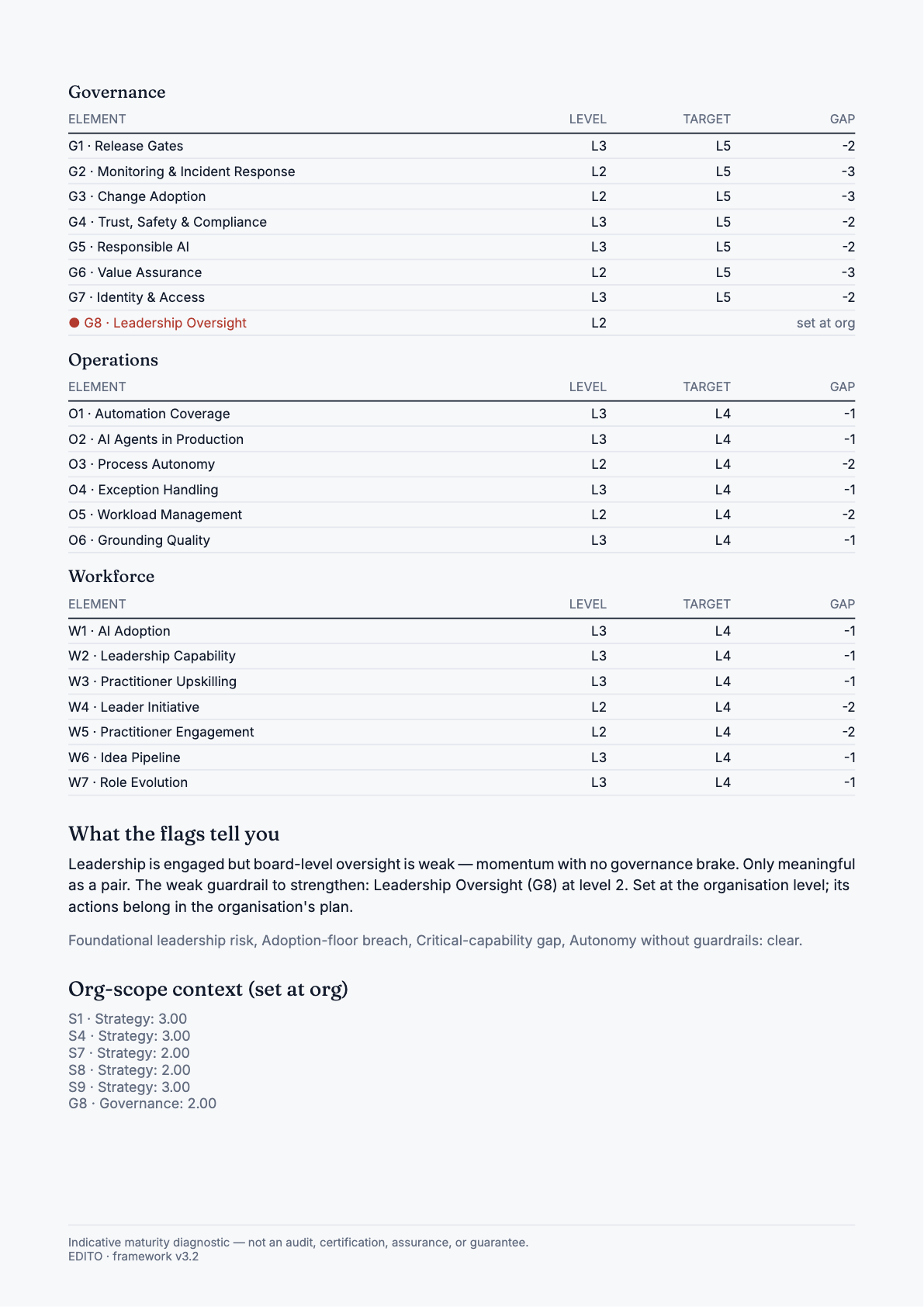
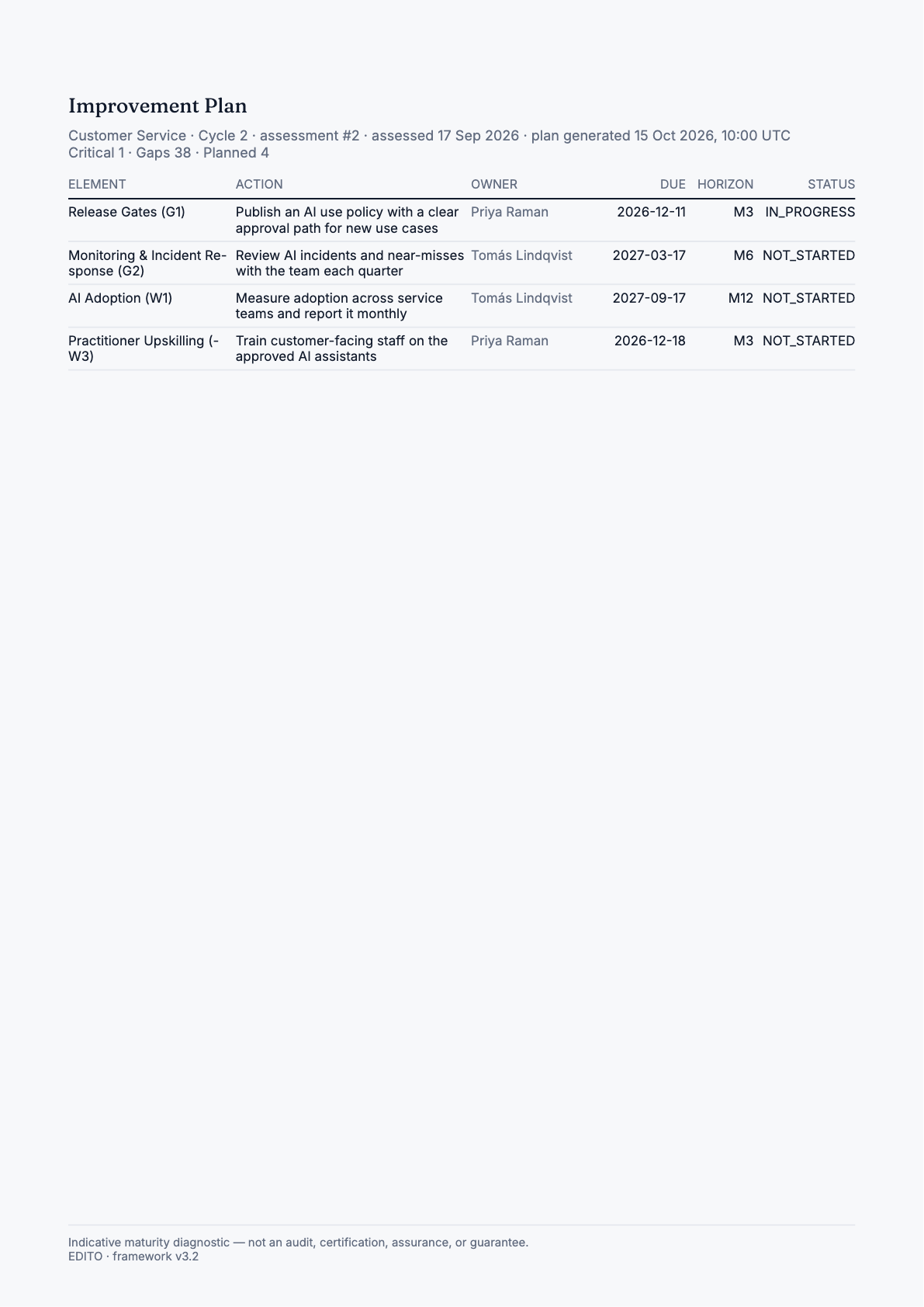
A unit's result and the organisation's roll-up each download as a PDF or a PowerPoint deck. The deck has the same sections as the PDF, except the org-scope context and the notes. Below is a sample unit report, generated from the seeded demo data, explained page by page.
| Section | What it shows | How to use it |
|---|---|---|
| Title | The unit, the date, the overall score and level. The disclaimer runs on every page and slide. | The headline for a leadership read-out. |
| Dimensions | Each dimension's score, level and gap to its goal. | Where the unit is strongest and furthest from goal. |
| Maturation | Movement since the last assessment, per dimension, and the gap still to goal. Shown from the unit's second assessment on. | The evidence of progress between cycles. |
| Maturity by element | Every element's level, against its target. | The detail behind each dimension. |
| What the flags tell you | Each flag that fired, in plain words. | The first things to address. |
| Org-scope context (set at org) | The six company posture elements, as set for the organisation. | Context the unit inherits, not the unit's own answers. PDF only. |
| Self-assessment notes | The notes written to support the scores. | Why each higher score was given. PDF only, when any notes were written. |
| Improvement Plan | Each action written against an element: element, action, owner, due date, horizon and status. Dimension-level and general actions are not in the report. | What is being done about the gaps. |
The organisation report covers the whole organisation: the cycle, its strengths and focus areas, the dimensions weighted by FTE, the movement since the last cycle with the plan actions at close, the company posture by element, a table of units with their overall score and level, and the organisation's plan actions that are written against an element. In the deck, strengths and focus areas share one slide. It has no flags section of its own: the flags, and how many units carry each, are read under focus areas. Sample pages are in 3.2.
👤Who can download
Anyone who can see the result. A unit's report: from its result (2.5), or, for the sponsor and an executive, its row on the Org dashboard (3.1). The organisation's report: from the roll-up (3.2), or, for the sponsor and an executive, the Org dashboard (3.1).
⚑What it is not
- Not an audit, certification, assurance or guarantee — every page says so.
- No financial figure.
- No email addresses of plan owners.
Glossary
- EDITO AI Maturity Framework
- The framework EDITO assesses against.
- Dimension
- One of six areas of AI maturity: Customer, Strategy, Technology, Governance, Operations, Workforce.
- Element
- One of 44 specific questions within the dimensions, each scored from 1 to 5.
- Level
- Where a score falls on the five-step scale: Explorer, Discoverer, Innovator, Transformer, Orchestrator.
- Anchor
- The description of what a score of 1, 2, 3, 4 or 5 looks like for an element.
- Note
- A short written explanation of what supports a score. Needed above 3. Also called a justification.
- Flag
- A warning that a serious weakness is present. It never lowers or caps a score.
- Company posture
- The six elements that describe the whole organisation. Set once per cycle by the sponsor and shown, read-only, in every unit's assessment. Also called org scope.
- Goal
- The score the organisation aims for in a dimension. Set by the sponsor; needed before a unit can plan. Also called a target.
- Gap
- The distance between a dimension's score and its goal.
- Self-declared starting point
- The organisation's own view of its level, set on the Org profile. Shown beside the assessed result, never combined with it.
- Unit
- A part of the organisation in the structure — a business unit, region or team.
- Groups-only unit
- A unit that only groups the units beneath it and is not assessed itself.
- FTE
- Headcount, in full-time equivalents. Used to weight a unit in roll-ups.
- Roll-up
- Unit results combined up the structure, weighted by FTE.
- Coverage
- How many of the units due for assessment have been assessed, and their share of the headcount.
- Cycle
- One round of assessment, opened and closed by the sponsor. A closed cycle's results are kept exactly as recorded.
- Maturation
- The movement between two assessments of the same unit, and the distance still to goal.
- Movement
- The change in a score between one cycle and the one before.
- Score spread
- How many element scores sit at each level across the organisation. Seen by the sponsor only.
- Horizon
- When a plan action is meant to land: 0–3, 3–6 or 6–12 months.
- Sponsor
- The person who owns EDITO for the organisation.
- Administrator
- Runs the workspace — people, structure, the company profile. The role alone cannot see or answer any assessment; an administrator who also holds unit access can, for those units.
- Unit head
- Heads a unit and the units beneath it; can assess and plan for them.
- Assessor
- Named to assess one unit.
- Executive
- Reads the Org dashboard and every result; changes nothing except their own sign-in.
- Written from above
- An assessment answered by a unit head above the unit, or by the sponsor. The result says so.
- Indicative
- A guide to where you stand, not a certified measurement.
What EDITO is not
- Indicative maturity diagnostic — not an audit, certification, assurance, or guarantee.
- A diagnostic, not an audit or a grade. The score is indicative — a mirror, not a verdict.
- Commitment: Your results are for improvement, not to rank or penalise an individual or a unit. EDITO scores units, not individuals, offers no ranking of units, and shows each unit's overall score and level, by name, to the members of its organisation.
- No uploads — notes are written text only.
- Not a financial figure.
- Not an email service. EDITO never sends the invitation for you.
Your data and privacy
?What it is
How your organisation's data is handled, set out in full on the privacy page.
👤Who sees it
✓Before you start
- Nothing.
→How to do it
- Read the privacy page, one section at a time.
⚙How it works
- That page is the reference. Where this Guide says who sees what, it follows that page, and if the two ever differ, the privacy page is right and the Guide is corrected.
⚑What it is not
- Not your agreement. Your contract with RORE Tech governs.
Download the Guide (PDF)
- The whole Guide is available as one PDF, for reading offline or sharing.
- Get it from Download the Guide (PDF) at the top of the Guide.
- It is made from these same pages, so its screenshots carry the same capture date.
Questions and answers
Q1What does a pending invitation to head a unit hold?
A unit has one head. While an invitation to head it is pending and has not expired, it holds that place: nobody else can be made head or invited to head the unit. The place is freed when the invitation is accepted, withdrawn, or expires after 7 days. A pending invitation counts the unit as Assigned on Ready to assess, but the person can't assess until they accept and create their account.
Q2Someone's account was erased. How do they come back, and what happens to their plan actions?
They come back only through a new invitation (1.6), as a new account with no link to the old one. Their plan actions stay. While the cycle is open, each of those actions shows — and Needs a new owner. on the plan, and Change owner gives it a new owner: on a unit's plan the sponsor or a head over the unit can (2.6); on the organisation's plan, the sponsor (2.7).
See 1.6 Roles and Responsibilities · 2.6 A unit's plan · 2.7 The organisation's plan
Q3Who can give and remove roles?
The sponsor owns the whole thing. An administrator runs the workspace — the structure and the company profile — gives or removes only the administrator role, can take away unit access, and invites no one. The administrator role sees and answers no assessment; an administrator who also holds unit access does, for those units. An executive reads the Org dashboard and every result, and changes nothing except their own sign-in.
Q4How do I import a spreadsheet of units or people?
Download the template, fill it in, and save it as a CSV file. Rows that begin with # are instructions and are skipped. The template's # rows, above the headings, say how to save it as CSV in Excel, Numbers and Google Sheets. If the import says it can't read the file, save it as CSV UTF-8 and import it again.
Q5Does headcount change a unit's score?
No. Headcount sets how much a unit counts in combined results. A unit's own score comes from its answers and from the company posture the sponsor sets; headcount plays no part in it.
See 1.5 Structure · 3.2 Roll-up
Q6Does anyone get emailed automatically?
No. Nothing is sent for you. Invitations, reminders and notices open in your own email, for you to send.
Q7Can a unit be assessed more than once in a cycle?
Yes. While the cycle is open, each saved assessment is a new round, and the latest is the one that counts in results and roll-ups. Every round stays in the unit's history.
See 2.4 Assess a unit · 2.9 Re-assess: history and what changed
Q8Why can't the cycle close?
One of two things stops it: the company posture isn't fully set, or a unit has an assessment in progress, which must be finished or discarded first. The page says which.
Q9Can a closed cycle be reopened?
No. A closed cycle's assessments and results are kept exactly as they were; its unfinished plan actions can still be carried forward or closed when the next cycle opens. To assess again, open the next cycle; it starts from the closed cycle's company posture.
Q10What happens to a plan when a goal changes during a cycle?
An action written against a goal that has since changed is marked changed: its status is locked until you select Accept the change, which ties it to the new goal. It does not count in progress until it is live again.
Q11Who can see each unit's results?
Everyone in the organisation except an administrator who is not the sponsor and has no unit access sees each assessed unit's name, headcount, overall score and level, on the Cycles page, the roll-up and the organisation report. Those views count flags and never show one against a unit. A unit's detail (its answers, notes, flags, plan and history) is seen only by its assessor, its head and the heads above it, the sponsor and executives. Its plan's done and total action counts show on the roll-up, and its number of elements below target in the organisation report.
See 2.3 Cycles · 3.2 Roll-up
Q12Why can't I see the Org dashboard?
Only the sponsor and executives can open it. Others don't see a link to it.
Q13Why can't I see the score spread?
It is for the sponsor only. It counts how element scores spread across the levels, organisation-wide, and names no unit.
See 3.2 Roll-up